How to use blocks and containers
Use blocks and containers to refresh different parts of the script.
The script works as follows:
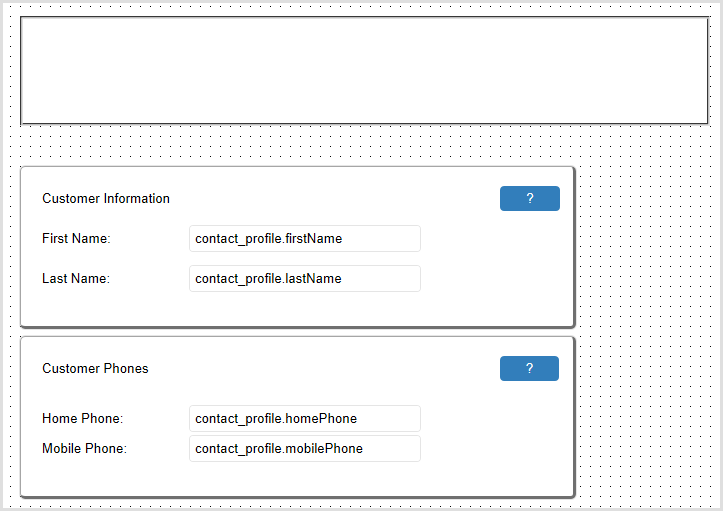
- When the script starts, the agent sees a screen with the following graphical elements:
- A blank area at the top of the script.
- An area to enter the customer first name and last name.
- An area to enter the customer home phone and mobile phone.
- When the agent clicks the ? in the Customer Information area, the blank area displays contextual help about the Customer Information area.
- When the agent clicks the ? in the Customer Phones area, the blank area displays contextual help about the Customer Phones area.
The script has the following components:
- A node MAIN.
- Two blocks, Block1 and Block2.
Blocks
The blocks Block1 and Block2 contain the contextual help for each of the customer information areas:
block "Block1" {
variables {}
cursors {}
static text "staticText100" {
size 340,25 at 200,41
enhanced style
label 'Please enter the customer first and last names.' {}
}
on load {}
on unload {}
}
block "Block2" {
variables {}
cursors {}
static text "staticText200" {
size 240,25 at 200,41
enhanced style
label 'Please enter the customer phones.' {}
}
on load {}
on unload {}
}
Container
The node MAIN has a container, helpContainer, which changes the visible block when the agent clicks the ? buttons:
node "MAIN" {
container "helpContainer" {
size 690,110 at 50,20
enhanced style
border etched
}
push button "pushButton1" {
size 60,25 at 530,190
enhanced style
label '?' {}
on click commit {
container 'helpContainer' set current block 'Block1'
}
}
push button "pushButton2" {
size 59,25 at 530,360
enhanced style
label '?' {}
on click commit {
container 'helpContainer' set current block 'Block2'
}
}
}
Download
You can download the sample ASL code from here.