How to use the Visual Script editor
Use the Visual Script editor to create scripts.
The Visual Script editor has the following parts:
- Tabs
- Toolbar
- Elements/Attributes menu
- Panel
- Property grid.
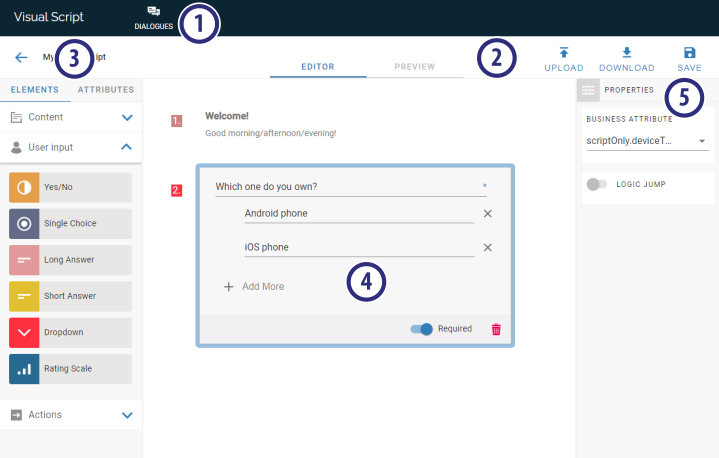
Tabs
Displays the following tabs:
- Dialogues: Displays the Visual Script editor.
Toolbar
The Toolbar of Visual Script editor allows you to edit or preview your script.
The toolbar also displays the commands that you can use to upload, download, and save scripts.
The Visual Script editor has the following commands in the toolbar:
- Editor: Displays the edition mode of Visual Script.
- Preview: Displays the preview mode of Visual Script.
Tip
You can test your script using the Preview mode.
 Upload: Loads a script from the local disk.
 Download: Downloads the current script to the local disk.
 Save: Saves the current script to the database of the Visual Script Windows service.
Elements/Attributes menu
Displays the groups of elements or attributes.
- Elements: Selects the Elements menu.
- Attributes: Selects the Attributes menu.
The Elements menu includes the following details groups:
- Content: Elements related to static content.
- User Input: Elements that require input from the user.
- Actions: Elements that perform actions.
The Attributes menu includes the following details groups:
- Activity: List of activity attributes, defined in the service of the campaign.
- Contact Profile: List of contact profile attributes, defined in the default directory of the service of the campaign.
- Outcome: List of activity outcome attributes, defined in the service of the campaign.
- Script only: List of user-defined variables.
- Built-in: List of built-in variables.
- Campaign: List of campaign attributes, defined in the service of the campaign.
|
Tip
|
Panel
Displays the script flow and elements.
Property grid
Displays the properties of the element selected in the Panel. To edit or select a value of a property, click the value of the property.