How to use the workflow editor in Script Developer
Script Developer includes an editor of workflow scripts. Use the Script Developer editor to create and publish workflow definitions.
The Script Developer window for the graphical designer of a workflow document has the following parts:
- Outline
- Panel
- Elements window
- Properties window
- Menu and toolbars.
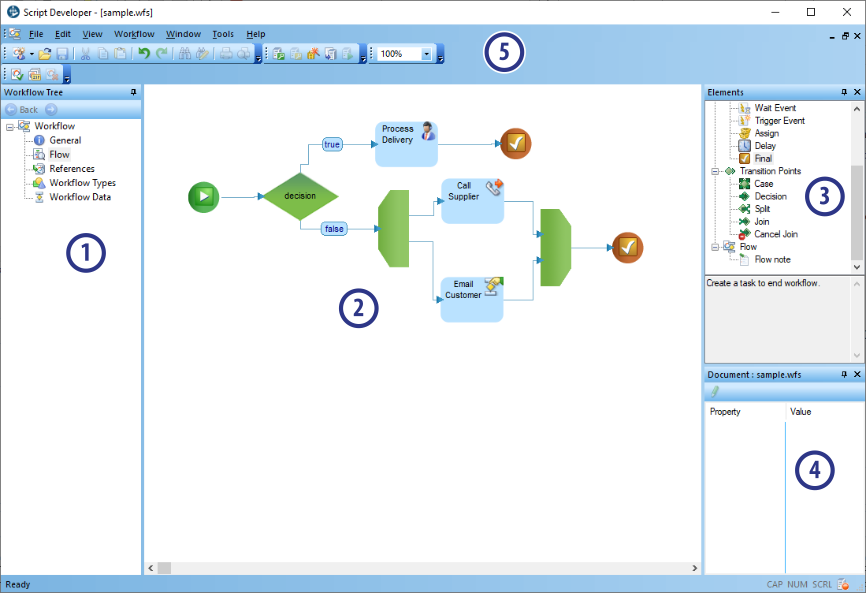
Outline
Displays a hierarchical view of the components of workflow scripts. The outline includes the following components :
 General: The absolute priority of workflow processes that use the workflow definition. The possible values for the priority of a workflow process are the following:
- 1 defines the low priority class.
- 2 defines the medium priority class.
- 3 defines the high priority class.
- Any other value defines a medium priority class.
 Flow: The flow designer for the current workflow script.
 References: The list of agent scripts that run in agent or automated tasks. When you add an agent script to an agent or automated task, Script Developer adds the reference of the agent script to References. For agent scripts of type Altitude Scripting Language, in the Panel, double-click a reference to an agent script to open the agent script in a new Script Developer window.
 Workflow types: Workflow types are user-defined or business data of type Activity attributes table schema > Enumerates. For example, service_type.
 Workflow data: Workflow data are user-defined or business data of type Activity attributes table schema > Fields. For example, licenseplate.
|
Tip To import enumerated types or use business data in the workflow script, connect to the Altitude uCI Server and get the activity attributes definition. |
Panel
Shows the details of the component that is selected in the outline.
Elements window
Hierarchical view of the elements that you use to design workflow scripts. Elements have the following types:
 Tasks: Actions.
 Transition points: Flow control actions.
 Flow: Comments.
Properties window
Displays the properties of an element that is selected in the Panel. To edit or select a value of a property, click the value of the property.
Menu and toolbars
The workflow editor of the Script Developer has the following menu commands and toolbars:
|
Toolbar |
Command |
Description |
|---|---|---|
|
|
Workflow > Validate |
Checks for errors in the active workflow definition. The command validates tasks, execution paths and the completeness of the workflow graph and displays the errors and warning on the Output window. Double-click the error to go to the respective position on the script. |
|
|
Workflow > Export to ZIP... |
Packs the XML definition of the workflow, the scripts that contain the workflow tasks and the compiled DLLs and support files, such as images, into a single ZIP archive. |
|
|
Workflow > Cancel |
Cancels the workflow operation in progress. |
|
|
Workflow > Get definition |
Launches a wizard that gets the table schema definition of the workflow data required by the workflow definition from the Altitude uCI Server. |
|
|
Workflow > Publish |
Publishes the current workflow definition to the Altitude uCI Server. |
|
|
Workflow > Flow snapshot |
Copies the contents of the flow area to the clipboard as an image. |
|
|
Workflow > Generate report |
Generates a report of the active workflow. The report is saved to the hard disk as an HTML file. |
|
|
Workflow > Auto layout |
Automatically redistributes the currently visible task through the flow area. |
|
|
Workflow > Align to grid |
Automatically aligns the positions of the task to the flow area grid. |
|
|
Workflow > Show condition expression for decision in flow |
Displays the friendly name of the Decision transition point instead of the expression in the graphical representation of the decision point in the workflow design area. |
|
|
Workflow > Show condition expression for case in flow |
Displays the friendly name of the Case transition point instead of the expression in the graphical representation of the decision point in the workflow design area. |


|
Toolbar |
Menu command |
Description |
|---|---|---|
|
|
Standard |
Groups standard commands. For example, Open and Save. |
|
|
Online |
Groups commands for testing and executing the current script online. |
|
|
Zoom |
Changes the zoom factor when viewing the Flow editor and the Graphical editor. |
|
|
Workflow |
Groups commands for performing workflow operations. The Workflow toolbar is only active in a workflow document. |



