Troubleshooting
Common troubleshooting scenarios and performance guidelines.
Compatibility between versions of the Altitude Bot Connector
If you perform an upgrade of the Altitude uCI Server, Integration Server, and the Altitude Bot Connector to a version that is not compatible with the previous versions of the Altitude Bot Connector, you have to recompile your custom bots using the new DLLs of the Integration Server APIs.
Log information
The log files of the following components provide useful debug information about the behavior of the interactions:
- Altitude Bot Connector
- Altitude Integration Server
- Altitude uCI Server logs:
- easy.log
- sam.link logs
Use the Debug mode in Microsoft Visual Studio
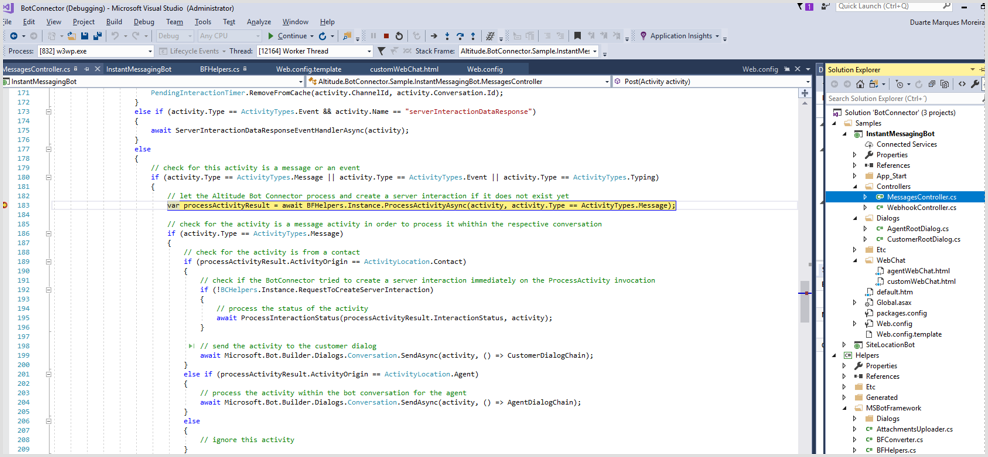
If you want to develop a chat bot project in Visual Studio, you can use the project in Debug mode to help you debug the project code, and attach the application to Visual Studio. For more information, click here.
The bot sends a "service unavailable" message
Ensure the agent campaign is open, and there are ready agents in the campaign.
If the customer cannot ask to transfer the interaction to a human agent, please check the following:
- You only configured and started the IVR campaign associated to the Altitude bot.
- You did not configure and start a human agents campaign.
- There are no human agents ready or assigned to the human agents campaign.
Improve the startup time of the custom bot in IIS
If the custom bot takes too long to start and handle the first request, configure application pool of the custom bot and the virtual directory in IIS as follows:
- Open the IIS Manager.
- Click Application Pools.
- Right-click the application pool related to the custom bot.
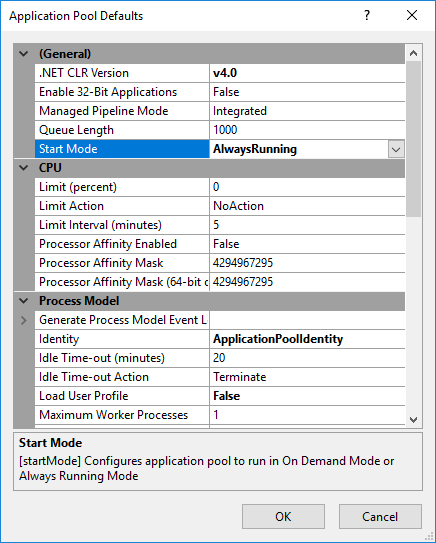
- Select Set Application Pool Defaults.
- Configure the Start Mode to AlwaysRunning.
- On the IIS Manager, select the option Sites > Default Web Site.
- Right-click the virtual directory of the custom bot.
- Select Manage Application > Advanced Settings.
- Configure Preload Enabled to True.
Internet Explorer Enhanced Security Configuration
Internet Explorer Enhanced Security Configuration (IE ESC) prevents the web chat control from loading.
|
Note The configuration is enabled by default in Windows Server operating systems. |
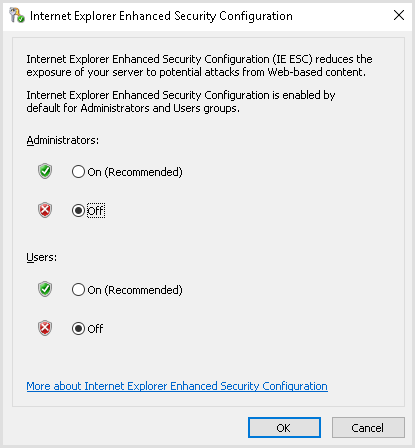
In the agent workstations running uAgent, you must disable the configuration to ensure the web chat control loads:
- Click the Start menu.
- Open the Server Manager.
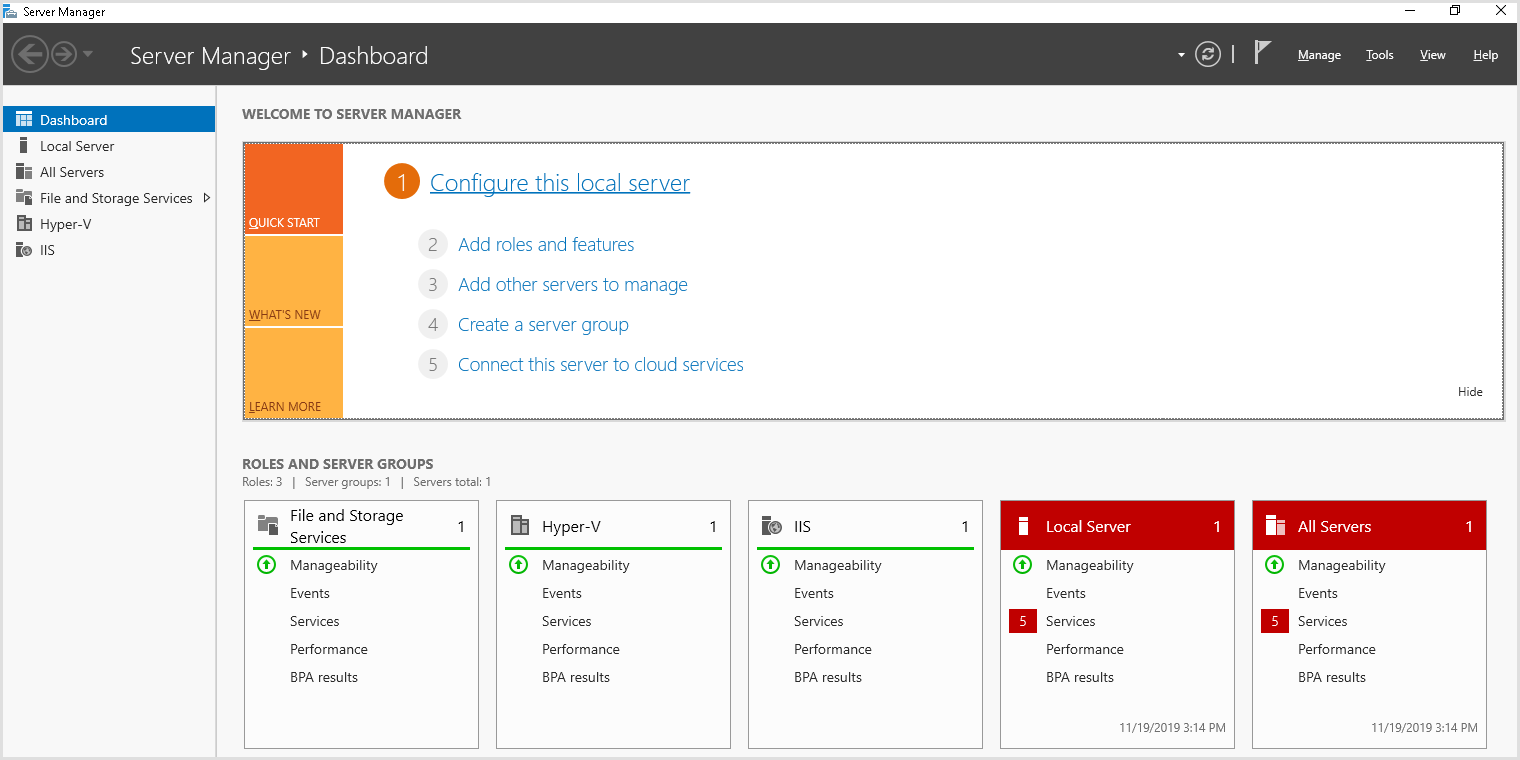
- Click Configure this local server.
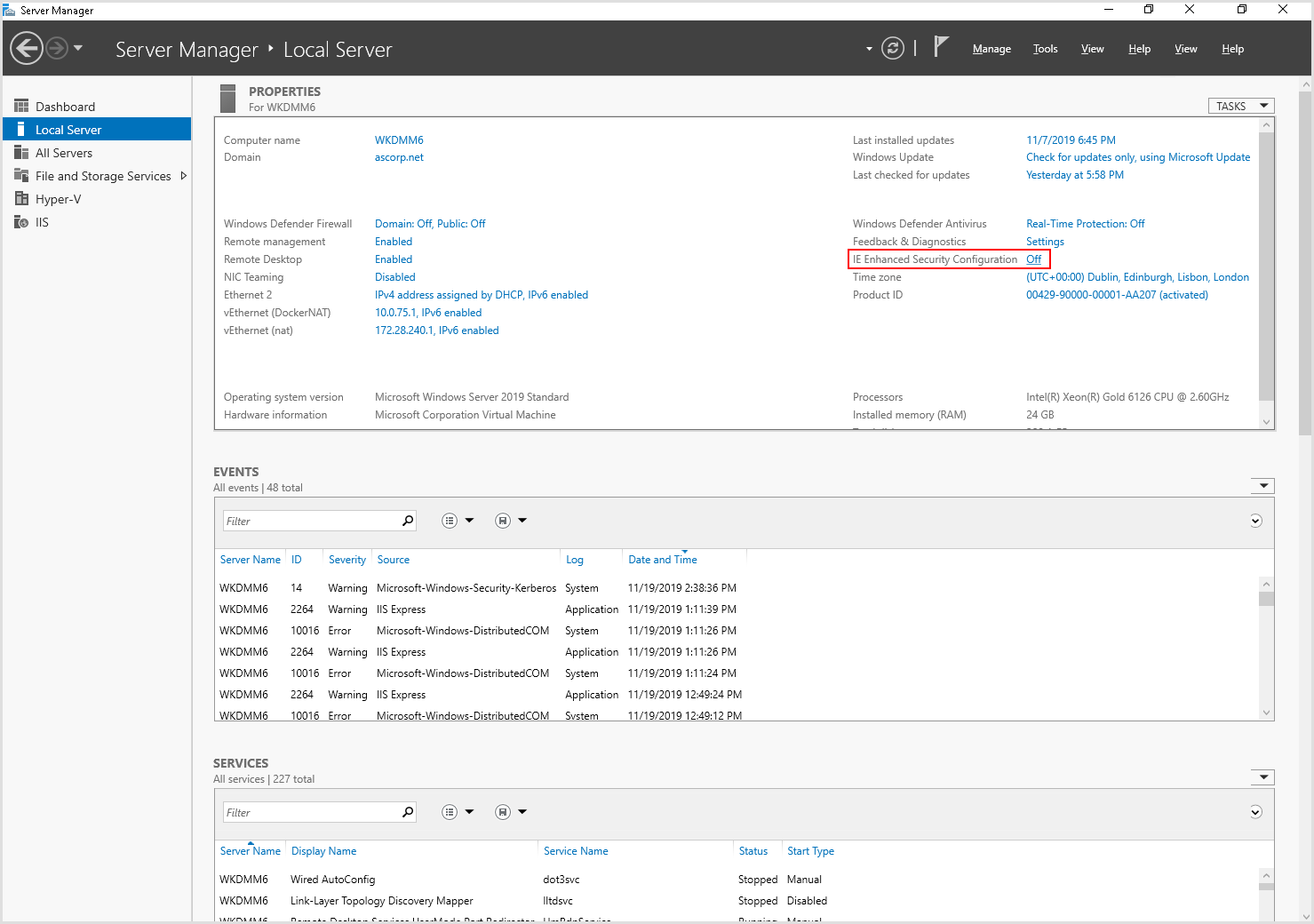
- Select Off for the IE Enhanced Security Configuration attribute to open the Internet Explorer Enhanced Security Configuration window.
- In the Internet Explorer Enhanced Security Configuration window, select Off for the following attributes:
- Administrators
- Users.
Solve issues related to the Azure channels
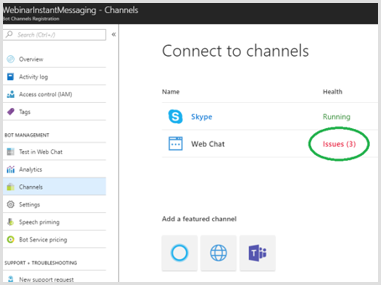
If a channel stops working for your bot, login to Azure and check the channel page. If Azure displays a notification of issues, for example, for the channel Web Chat as in the following image:
Execute the following steps:
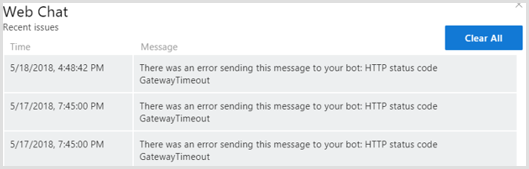
- Click Issues (x) in the Connect to channels page, where x is the number of issues. For example, Issues(3).
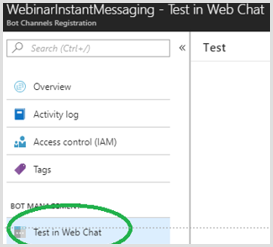
- In Azure, in the main menu of the bot, click Test in Web Chat to:
- open a web chat control and test the behavior that creates the issues.
- fix the issues, ensuring the interactions with the customer work as expected.
Multiple HTTPS bindings on an IIS web site with Integration Server
The WCF services hosted in IIS are configured to only have one base address by default.
If your project requires to have multiple HTTPS bindings, the following error message from the Integration Server displays this limitation:
"This collection already contains an address with scheme http. There can be at most one address per scheme in this collection".To enable multiple site bindings and avoid the error, enter the following configuration in the Integration Server configuration file:
<system.serviceModel>
<serviceHostingEnvironment multipleSiteBindingsEnabled="true" />
</system.serviceModel>
|
Note For more information, click here. |
MS Bot Services requests using a proxy
If the requests to the MS Bot Services need to go through a proxy, add the following <environmentVariable> to the <aspNetCore> key, in the Web.config configuration file of the InstantMessagingBot, as follows:
<aspNetCore processPath="bin\Debug\net6.0\Altitude.BotConnector.InstantMessagingBot.exe" stdoutLogEnabled="false" hostingModel="InProcess" arguments="" >
<environmentVariables>
<environmentVariable name="HTTPS_PROXY" value="http://10.10.10.10:909" />
</environmentVariables>
</aspNetCore>
The value of the environment variable HTTPS_PROXY is the URL to the IP address and port of the proxy.
|
Tip To know more about environment variables, click here. |
Firewalls and other security issues
If you have an outbound firewall blocking traffic from your bot to the Internet, you need to allow-list the following URLs in the firewall:
- login.botframework.com (Bot authentication)
- login.microsoftonline.com (Bot authentication)
- *.botframework.com (channels)
Since agents only use the web chat control, you can allow-list directline.botframework.com.
For more information on Bot Framework security and privacy, please see https://docs.microsoft.com/en-us/azure/bot-service/bot-service-resources-faq-security?view=azure-bot-service-4.0.