How to handle an instant messaging interaction
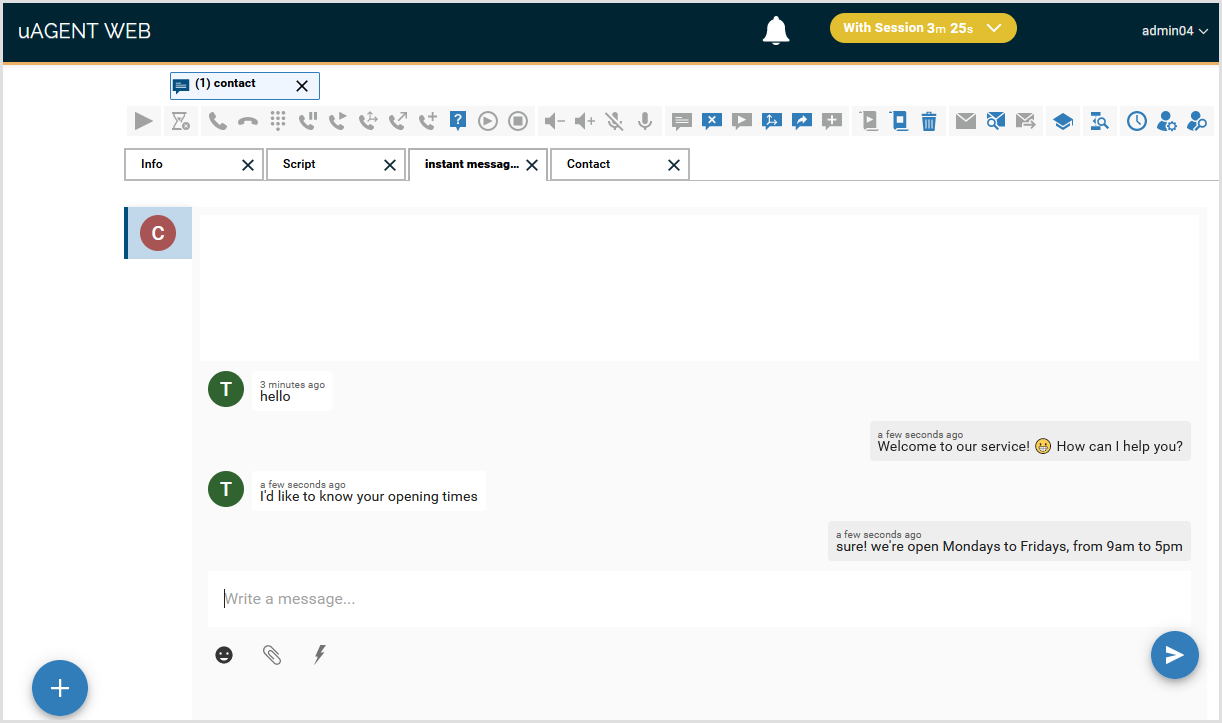
The example displays an instant messaging interaction between a customer and an agent.
-
In Management Portal, start the Human agents campaign.
- Select the current context Campaigns.
- Right-click the human agents campaign associated with the bot. For example, IMHuman.
- Select Start.
-
Set ready in uAgent.
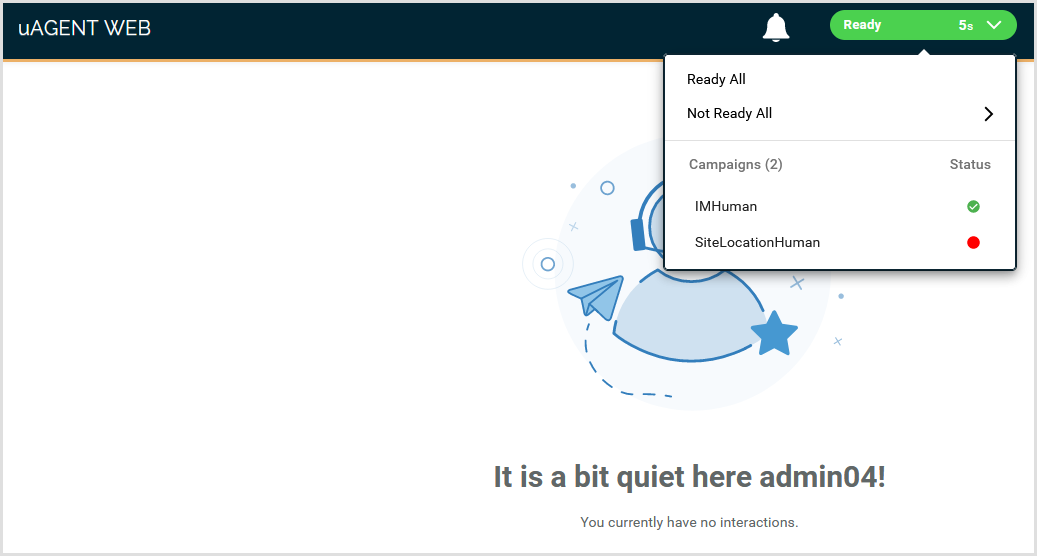
An agent logs in to uAgent and sets ready in the human agents campaign. For example, login to uAgent and set ready in the campaign IMHuman.
-
Start the web chat control in a web browser.
For example, the customer accesses the following address in the browser: https://demobot1.enghouse.com/InstantMessagingBot/WebChat/customWebchat.html?entryPoint=myimchannel
The address must contain:
- The name of the machine where the bot is running. For example, demobot1.enghouse.com.
- The customWebchat.html file. In this example, the file is located in the machine of the bot, in the path: C:\Program Files (x86)\Altitude\Altitude uCI 8\Altitude Bot Connector\Samples\InstantMessagingBot\WebChat.
- The entry point configured in the bot configuration file. For example, myimchannel.
-
Start an instant messaging interaction.
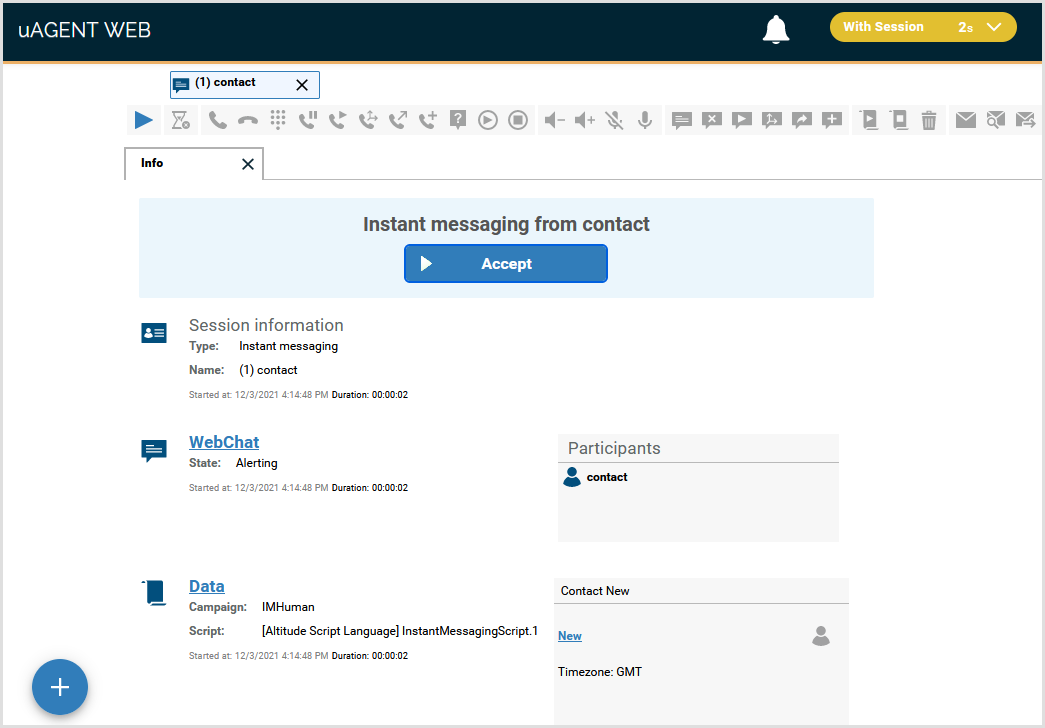
When the customer enters an instant message in the web chat control, a human agent available in the campaign receives an alerting instant messaging interaction in uAgent.
-
The customer chats with a human agent.
After the agent accepts the interaction, the agent can answer to the customer instant messages.
uAgent displays the messages that the customer exchange in the Instant messaging tab, and the agent can write new messages in the text box.
Using the web chat control, the customer and the agent can:
- Attach files
- See when the other conversation party is typing.