How to use the Xperience Routing editor
Use the Xperience Routing editor to create flows.
The Xperience Routing editor has the following parts:
- Tabs
- Toolbar
- Block/Variables menu
- Panel
- Block actions
- Property grid
- User menu.
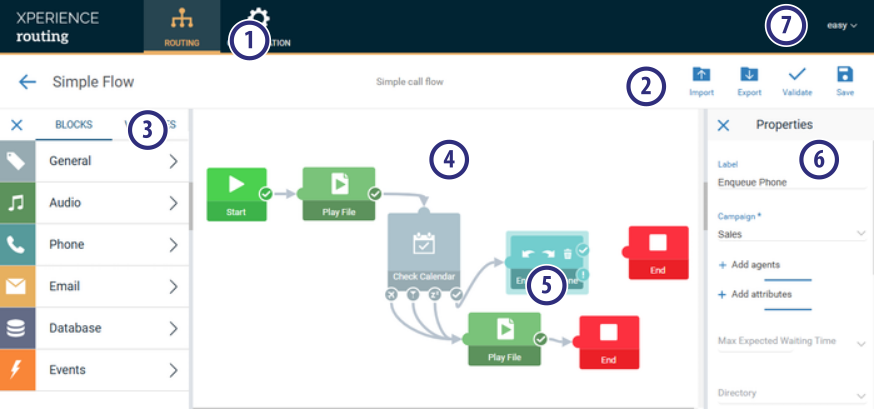
Tabs
Displays the following tabs:
- Routing: Displays the Xperience Routing editor.
- Configuration: Contains panels to allow you to configure the calendars, whitelists, blacklists, and audio resources to use in the flows.
Toolbar
The Toolbar of Xperience Routing editor displays the commands that you can use to import, export, validate, and save flows.
The Xperience Routing editor has the following commands in the toolbar:
 Import: Loads a saved flow from the local disk.
 Export: Saves the current flow to the local disk.
 Validate: Checks the current flow for errors.
 Save: Saves the current flow.
Block/Variables menu
Displays the groups of blocks or variables.
- Blocks: Selects the Block menu.
- Variables: Selects the Variable menu.
|
Note You can click |
 to hide the Block menu or the Variables menu.
The Block menu includes the following details groups:
- General: General purpose blocks.
- Audio: Blocks related to audio files.
- Phone: Blocks related to phone call actions.
- Email: Blocks related to email actions.
- Instant Messaging: Blocks related to instant messaging actions.
- Database: Actions that can retrieve information from tables executing an SQL query, or execute an SQL query on the Altitude uCI Server database.
- Events: Blocks related to flow events.
The Variables menu includes the following details groups:
- Predefined: List of built-in variables.
- Campaign: List of campaign attributes, defined in the service.
- Contact: List of activity attributes, defined in the service.
- Transferred: List of activity attributes to use when transferring an interaction, defined in the service.
- End user: List of user defined variables.
|
Tip
|
Panel
Displays the flow design.
Block actions
Displays the actions that you can use on each block. Each block has the following actions:
 Rotate left: Rotates the start and exit points of the selected block to the left.
 Rotate right: Rotates the start and exit points of the selected block to the right.
 Delete: Deletes the selected block.
Property grid
Displays the properties of a block that is selected in the Panel. To edit or select a value of a property, click the value of the property.
|
Note You can click |
 to hide the property grid.
|
Note Use the browser zoom to zoom the flow. |
User menu
Displays the following operations:
|
Operation |
Description |
|---|---|
|
About |
Displays the current version of Xperience Routing. |
|
Log out |
Logs out the user. |