How to delete cube data using Management Portal
Delete cube data to purge old information from the Altitude uCI Server database.
|
Attention If you want to delete cube data from a large period of time, Delete Cube Data can generate performance issues on the contact center. |
- Login in Management Portal.
- Select the menu option Tools > Data Maintenance....
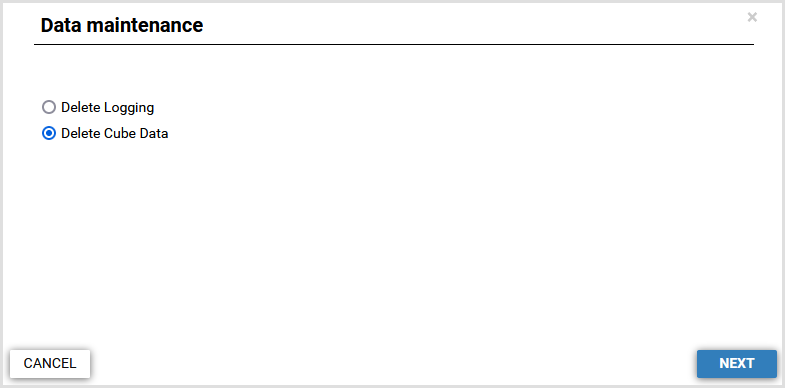
- Select Delete Cube Data.
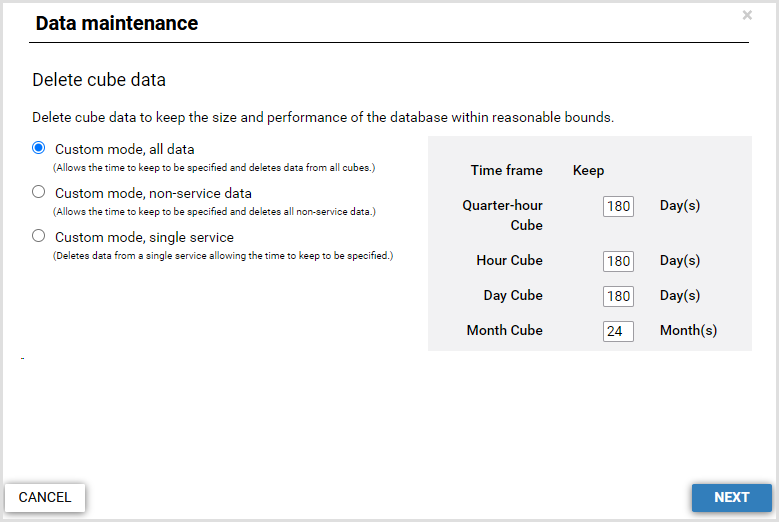
- Select which cube data to delete.
- Custom mode, all data: For each time frame, specify the number of days to keep information. After finishing the wizard, the Altitude uCI Server deletes cube data older than the specified number of days from all cubes.
- Custom mode, non-service data: For each time frame, specify the number of days to keep information. After finishing the wizard, the Altitude uCI Server deletes cube data older than the specified number of days from all cubes not related with services.
- Custom mode, single service: Select a service and, for each time frame, specify the number of days to keep information. After finishing the wizard, the Altitude uCI Server deletes cube data older than the specified number of days from all cubes related with the selected service.
Time frame
Minimum value
Quarter-hour
180 (days)
Hour
180 (days)
Day
180 (days)
Month
12 (months)
- Click Finish.
Important
After deleting cube data, if you monitor information or generate a report from a date that has deleted cube data, the monitoring panel or report displays 0 (zero) for the requested counters, in the same time frame. For example, if you delete cube data for the hour cube, the values for the time frame hour can be zero, but the values for the time frame month can have values.