How to use Update Manager
Update Manager downloads Altitude components from the Altitude Update Center, using a wizard.
Prerequisite: Update Manager requires a customer or partner account. Open a ticket with Enghouse Customer Support to request an account.
|
Note Update Manager connects to the Altitude Update Center using certificate pinning. To use Update Manager, disable deep packet inspection from your anti-virus software. |
- In Windows, open Update Manager.
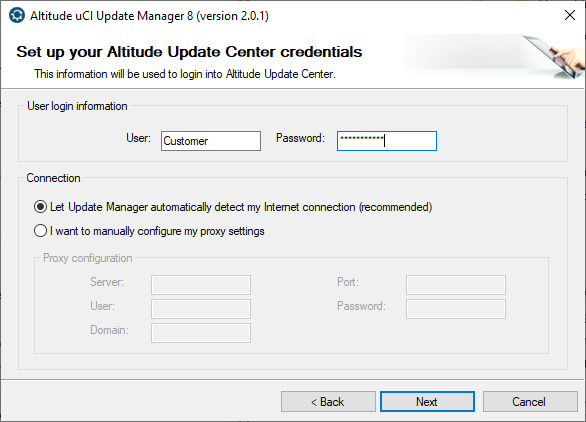
- Define the user and password. User login information
- User: Enter the user name of the customer account.
- Password: Enter the password of the customer account.
- Define the connection properties. Connection
- Let Update Manager automatically detect my Internet connection (recommended): Allows Update Manager to automatically connect to the Internet.
- I want to manually configure my proxy settings: Manually define the proxy settings.
- Server: Enter the address of the HTTP proxy server.
- Port: Enter the port number of the HTTP proxy server.
- User: If the proxy server uses user authentication, enter the user name of the account to log in to the proxy server.
- Password: If the proxy server uses user authentication, enter the password of the account to log in to the proxy server.
- Domain: For ISA Server firewalls, enter the Windows domain of the user.
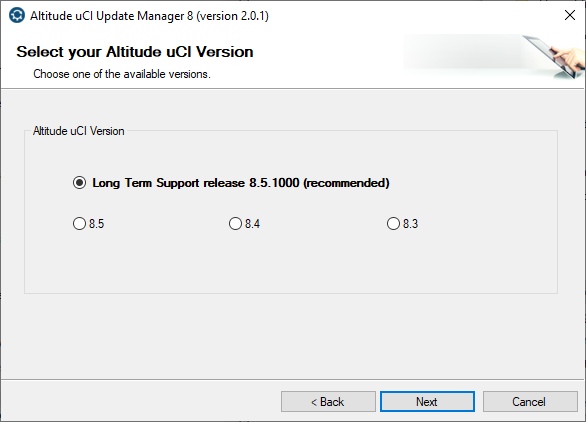
- Select the version of the components to download.
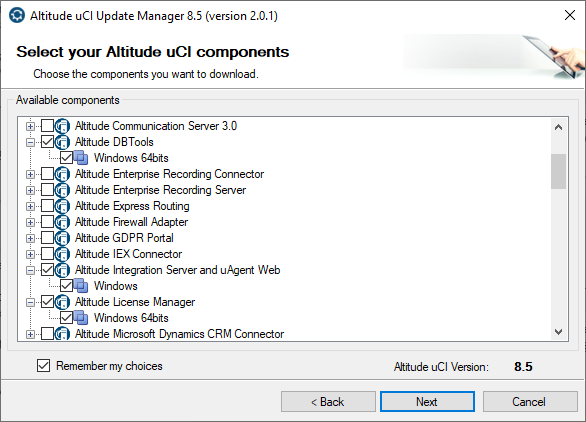
- Select the components to download.
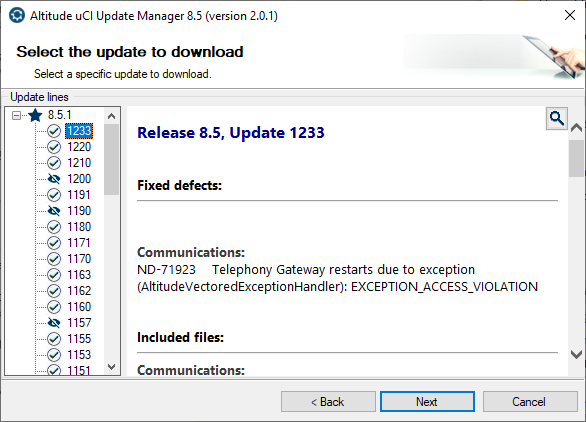
- Select to download a specific update, and select the number of the update.
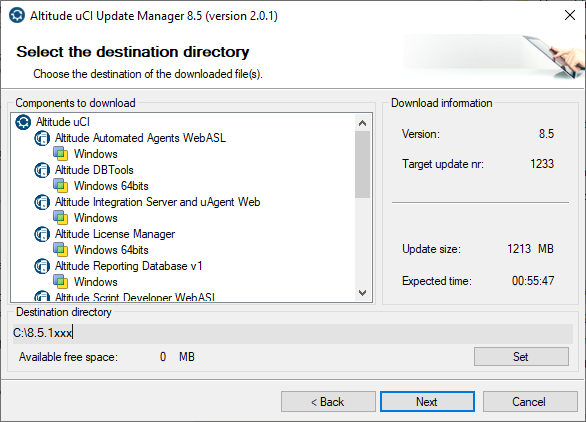
- Select the destination folder, and confirm the download.