How to use Altitude Recorder
Know how to navigate in the Altitude Recorder.
System Administrators use the Altitude Recorder Monitor to do the following:
- Configure and restart the Control Server, Storage Servers, and individual Channels.
- Configure sets of Channels, compare the configurations of Channels, and restart changed Channels.
- Check if servers and Channels are running, and troubleshoot stopped Channels.
- Check the available disk space in Storage Servers and Channels.
- Tune the bandwidth used to transfer recordings from Channels and Altitude vBox to Storage Servers.
After logging in to a Control Server, the Altitude Recorder Monitor displays the main window with the following parts:
- Outline
- Menu and toolbar
- Detail list.
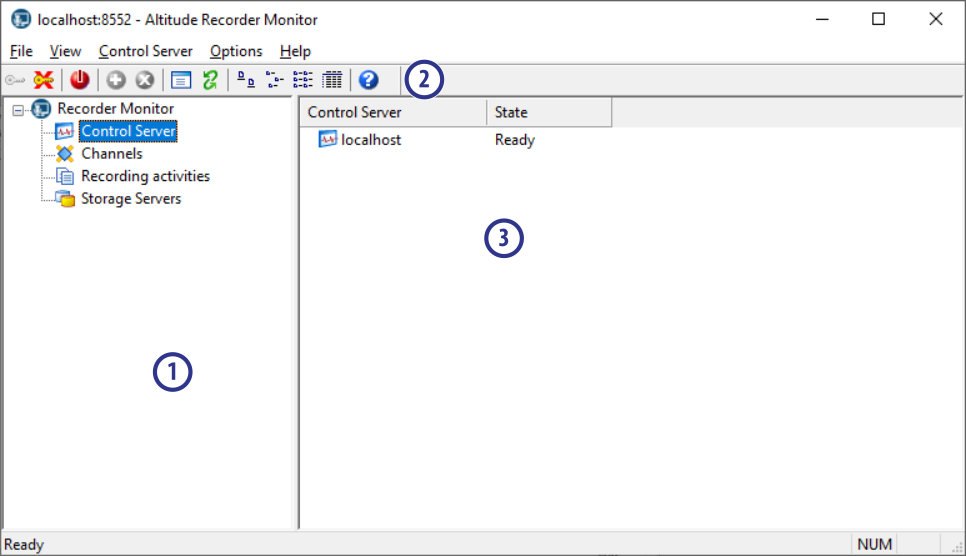
Outline
The outline displays a logical view of the components, configurations, and activities of an Altitude Recorder installation. The more important icons are the following:
 Control Server: Represents the Control Server to which the Recorder Monitor is connected.
-
 Channels: Represents the Recorder Channels connected to the Control Server, grouped by bandwidth profile. The icon indicates the state of each Recorder Channel, as follows.
- (green) The Channel is ready.
 (red) The Channel is not ready.
 (yellow) The Channel is ready, but no agent is logged at the extension.
 (exclamation mark next to the icon) The configuration of the Channel was changed. Reboot the channel to apply the changes.
-
 Storage Servers: Represents the Storage Servers connected to the Control Server. The icon indicates the state of the Storage Server, as follows:
- (green up arrow) The Storage Server is ready.
 (red down arrow) The Storage Server is not ready.
- (exclamation mark next to the icon) The configuration of the Storage Server was changed. Reboot the Storage Server to apply the changes.
 Bandwidth profiles: Configurations that limit the bandwidth used to transfer recordings from Channels to Storage Servers. Define bandwidth profiles on Storage Servers, then assign the profiles to Channels.
Menu and toolbar
Menu and toolbar commands that apply to the entity selected in the outline. The following commands are especially useful:
 ... > Properties: Displays the properties dialog for the selected Control Server, Storage Server, Channel, or bandwidth profile rule. Reboot the server or Channel for the changes to take place.
 ... > Reboot: Restarts the selected Control Server, Storage Server, or Channel.
 View > Details: Shows detailed information in the detail list.
- Channels > Batch configuration...: Applies the same configuration to a subset of Channels, simplifying the initial configuration.
- Channels > Configuration snapshot...: Compares the configurations of all Channels, simplifying the detection of inconsistent configurations.
- Channels > Reboot changed channels: Reboots all Channels with changed configurations.
Detail list
The detail list shows the components of the entity selected in the outline. The following lists show useful detailed information:
- Channels in bandwidth profile: Displays whether Channels are ready to work, why they stopped working, and the available disk space.
 Recording activities: Displays the ongoing recordings in Recorder Channels.
 Storage Servers: Displays whether Storage Servers are ready to work, and the disk space available.
- Bandwidth profile rules: Displays the rules that define the bandwidth available along the day for each Channel in a bandwidth profile.