Troubleshooting
Describes troubleshooting scenarios with CTLive and the Altitude CTLive Service.
Docker failed getting image due to daemon
If CTLive displays the following message:
unable to get image 'harbor.cloudando.com/reitek/imchannel:3.1.2-RC1': Cannot connect to the Docker daemon at unix:///var/run/docker.sock. Is the docker daemon running?
- Using a Linux console, login to the machine where CTLive is installed.
- Confirm if the Docker service is running, using the command systemctl status docker
- Start the Docker service, using the command systemctl start docker
- Configure the Docker service to start when the machine reboots, using the command systemctl enable docker
CTLive Manager stopped responding and errors at the console
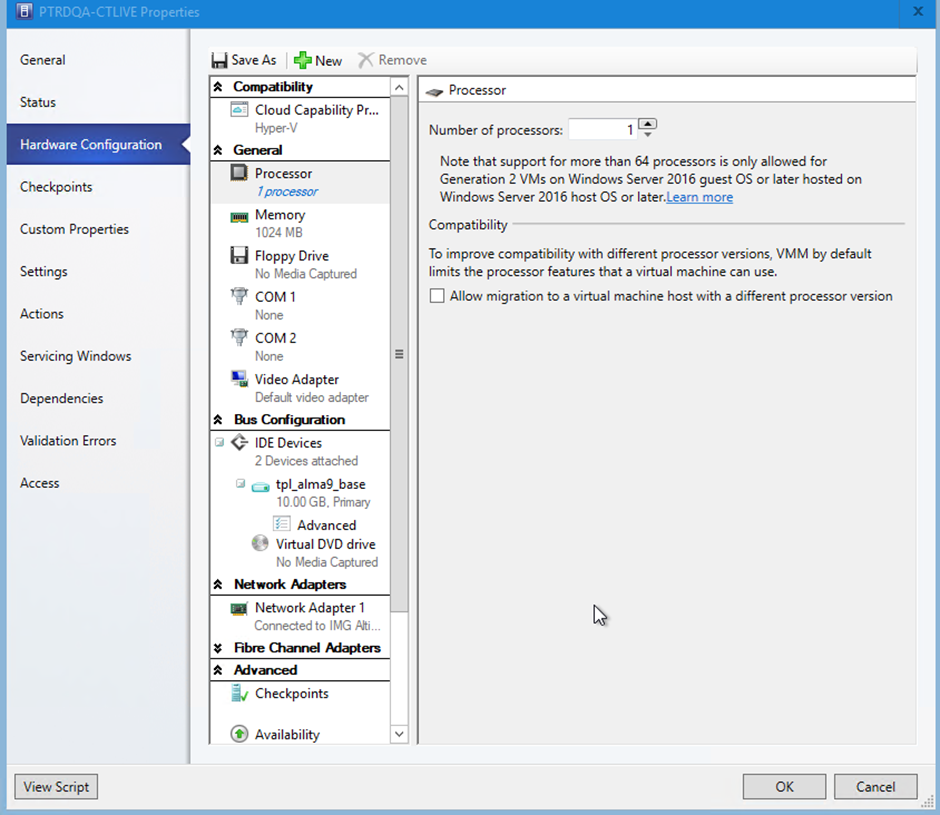
If CTLive Manager displays HTTP 5xx errors, and the machine where CTLive is installed is running in Hyper-V, do the following:
- Shut down the machine where CTLive is installed.
- In Hyper-V, configure the machine processor, and disable the option Allow migration to a virtual machine host with a different processor version.
The Altitude CTLive Service does not receive requests from CTLive
In CTLive Manager, if you configure the ContaCT7 URL with the hostname of the machine where the Agent Portal and the Altitude CTLive Service are installed, CTLive may not resolve the hostname.
By default, Docker containers inherit the configuration file resolv.conf from the host. The file resolv.conf includes an option, ndots, that must be configured depending on the FQDN of the machine.
|
Tip See https://man7.org/linux/man-pages/man5/resolv.conf.5.html to know more about the file resolv.conf. |
Configure the ndots parameter and recreate the CTLive Docker container.
CTLive chat transcripts are not loaded in Interaction History
Ensure the configuration parameter Native IM Recording is disabled in the campaign.
WhatsApp customers do not receive some attachments
If WhatsApp customers are not receiving some of the attachments you are sending, check if the file type is supported by Meta.
See the Meta documentation on the file types that WhatsApp supports.
The agent sees client messages with different timestamps, or timestamps change after reloading transcript
If the agent chat control displays out-of-sync timestamps for agent and customer messages, or if the timestamps change after reloading the page, the CTLive machine may be using an NTP server that has a delay.
To change the NTP server on the CTLive machine, do as follows:
- Using a Linux console, login to the machine where CTLive is installed.
- Edit the file /etc/chrony.conf.
- Change the parameter server to a different NTP server. For example, time.nist.gov.
- Restart the chrony daemon, using the command
systemctl restart chronyd - Confirm if time was synchronized, using the command chronyc sources