Data models
|
Note Only Data Designers can use this tab of Reporting to create and edit data models, i.e., work with data. Data Designers and Administrators can also share these assets with other users. |
The Data tab of the Reporting interface provides access to the data models management screen. Only Data Designers and Administrator users have access to this tab.
Data models are used to define connections and queries that Reporting uses to access data for reports from the relevant databases and files. All available data models are listed in this tab.
|
Note A user's role defines the visible data models and the user's capability to edit them. |
Data Designers can edit or duplicate existing data models, import them from other Reporting instances, export them, delete, or create new data models. The owner of a data model is listed under the model's name. Data models are also indicated with the  icon .
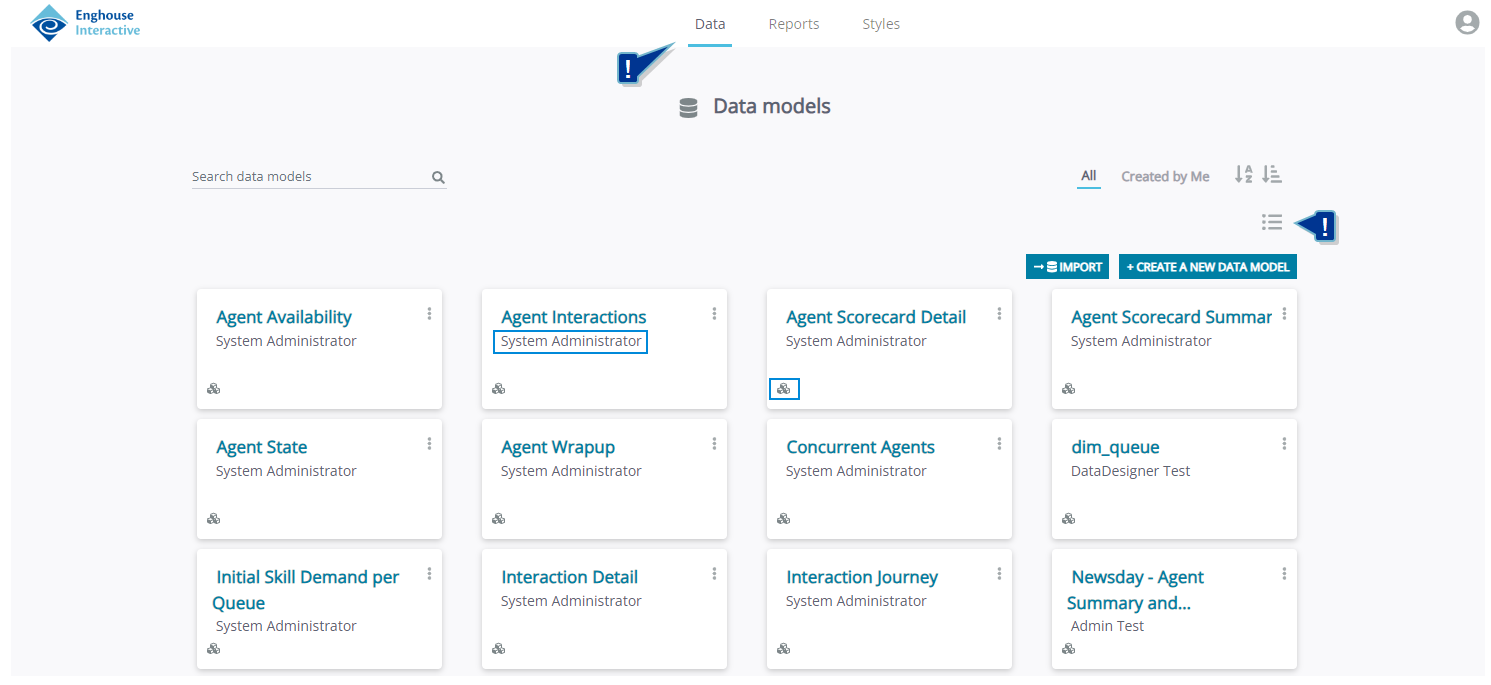
You can use the search bar to search for a specific data model by name. The search function is not case-sensitive.
Click Create a new data model to configure a new data model directly. This procedure is described in Creating a new data model.
The Data models view also offers the following filtering and sorting options:

- All: Full list of all the data models available to the logged-in user.
- Created by Me: List of only the data models created and owned by the logged-in user.
-
 : Sorting the listed data models by name (alphabetically) in ascending or descending order.
 -
 : Sorting the listed data models by creation date in ascending or descending order.
Each asset tile in the Data tab also has the Options menu in its upper right corner. Clicking it opens a dropdown list with the following options (the list varies based on whether you own the asset or not):
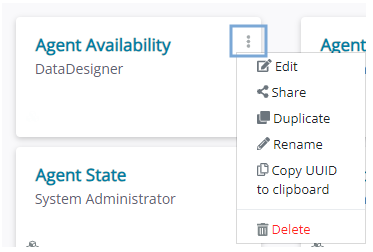
- Edit: Allows the user to modify the data model and all its components and data through the data model editor.
- Share: Lets the owner grant data model access to other users of the Reporting system. See Data model sharing for further details.
- Duplicate: Makes a copy of an existing data model. The new model can than be edited separately from the original one and is owned by the user who copied the data model. This option is available even when the user performing the copy action is not the owner.
- Rename: Changes the name of the selected data model to the desired text. Preexisting connections between the renamed data model and reports are retained.
- Copy UUID to clipboard: Copies the unique ID of the asset to the clipboard. This can be relevant, for example, when importing updated versions of a data model, to ensure that the asset is indeed the same.
- Delete: Deletes the selected data model.
| Caution
Deleting a data model cannot be undone. Always check before confirming this action. |
|
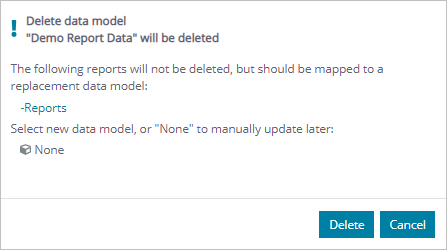
Note If a data model selected for deletion is connected to a report, the report should be mapped to a replacement data model before starting or finishing the action. The mapping can be postponed for a later time, but the report will not be functional until it is mapped to a new data model. |
Data model importing is also available in this view by clicking Import. This topic is covered in more detail in Data model export and import.
Furthermore, you can also choose to see the data models in a tabular form. You can switch to this mode by clicking  . The data models list is then shown as follows:
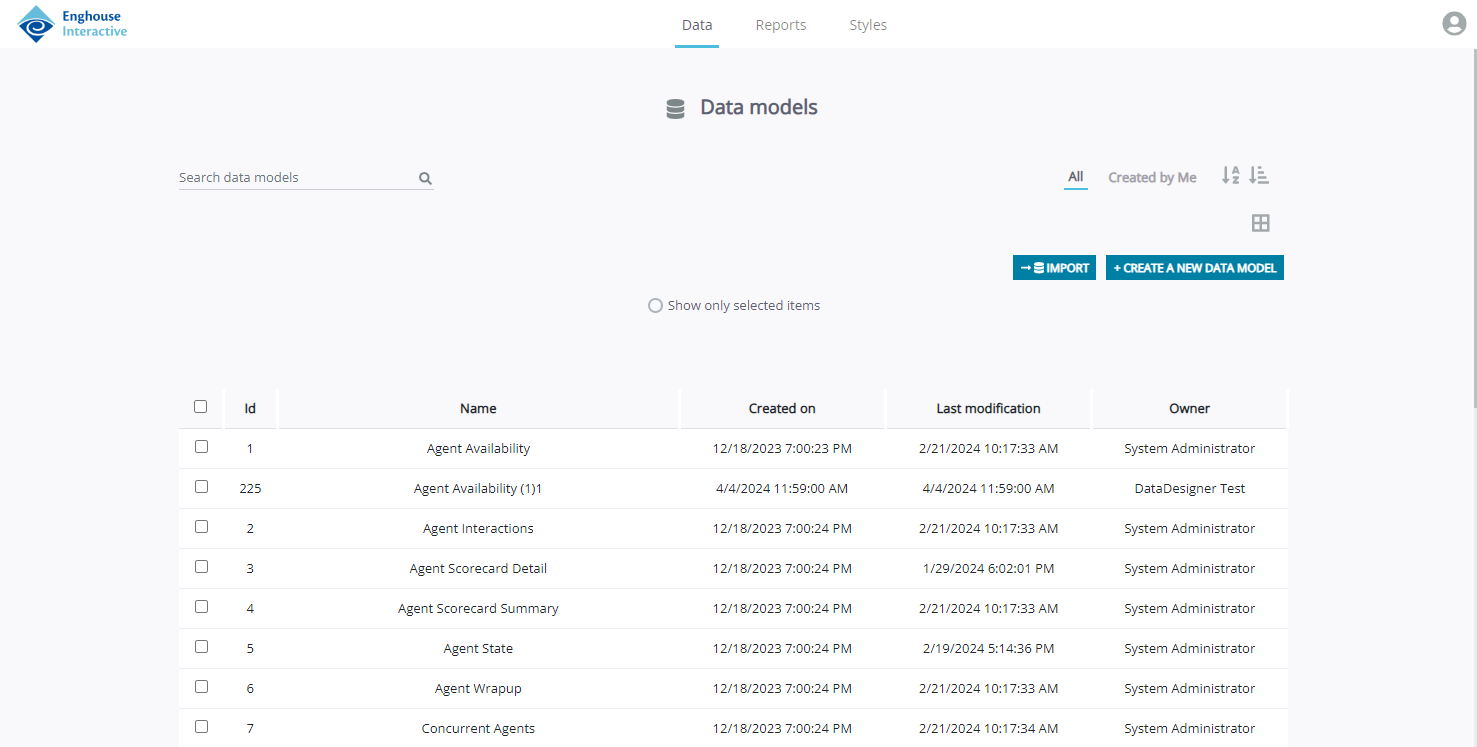
Here you can see the most important data about the assets, such as the UUID, name, relevant dates and the owner. In the first column of the table, you can select all or just some individual assets. To show only the selected items, click Show only selected items above the table.
Each asset row also has the Optionsmenu at the right-hand end of the column. Here you can see the same options as described above.
Additionally, when you select one or more assets, additional options are shown for the asset(s):
- Share: Share the asset with other users or groups. See Data model sharing for further details.
- Unshare: Remove the access rights from users or groups. See Data model sharing for further details.
- Delete: Delete the selected asset(s). You must be the owner of an asset to be able to delete it. If there are any assets among the selected that you do not own, a warning message will be shown to indicate which assets the action will not be performed for.
| Caution
Deleting a data model cannot be undone. Always check before confirming this action. |
- Export: Export the selected asset(s). See Data model export and import for further details.
|
Note
|
 in the top part of the pop-up window to see which assets you are working with if multiple are selected.
To turn the data model tile view back on, click  under the sorting tools in the upper right section of the Data tab.