Creating a new data model
To create a new data model within Reporting, you must follow these steps:
- Click Create a new data model in the upper right corner of the Data tab.
- In the pop-up window, enter the name for your data model.
- A new window opens with an empty Data Model Editor. In the Dictionary toolbar, click New.
- In the dropdown menu, click New Data Source.
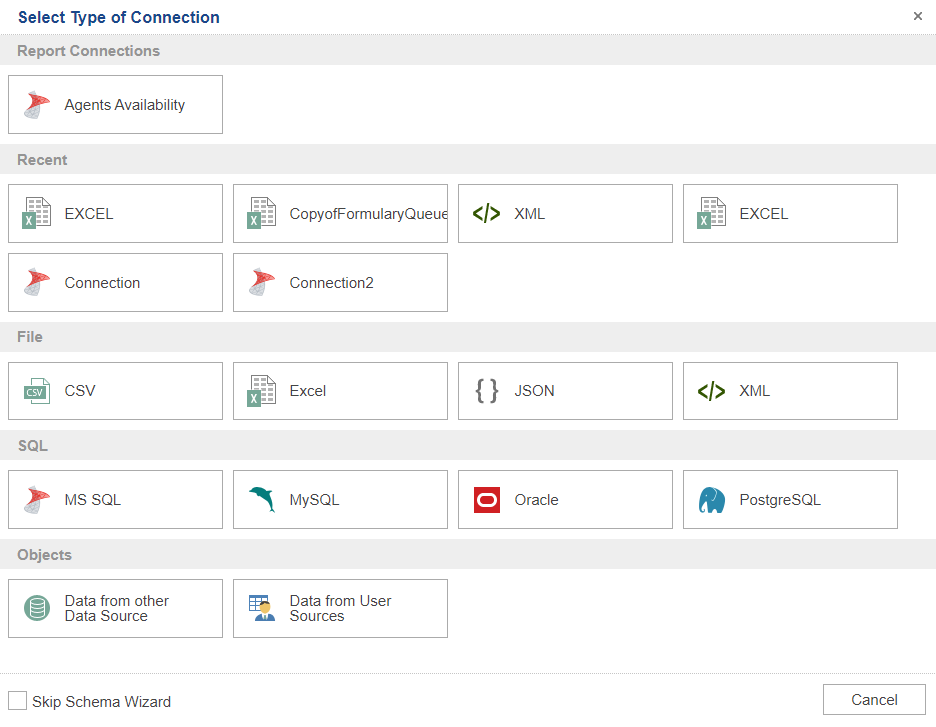
- The Select Type of Connection window opens. Here you select the needed data source. A data source is an entity used for storing data. It is usually located on a local or remote server disk. It can have different forms, database types, files, etc. Click the relevant file or connector to the data source for the new data model. This menu also offers using existing database connections for the new data model. All information related to the specific setup of each available data source is described in Creating a data source.
- After setting up your data source, click Continue. This opens the Data Model Editor with your new data model and its data source.
- To save the current data model, click Save
 just above the Dictionary and enter the name in File Name, then click Save. When creating a new data model, it is recommended to save it immediately after the Data model editor opens.