Report and report view sharing
The sharing option lets the owner of the asset grant access to other users or groups of the Reporting instance.
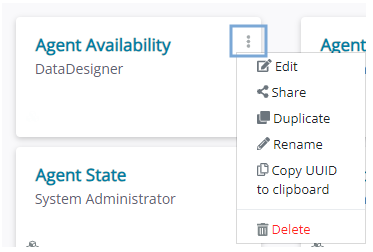
It is located in the options menu for all owned reports or report views in the Reports tab. To share an asset with other users, do the following:
- Click Options
 of an owned report or view tile.
 - Click Share in the dropdown menu.
- In the Search user or group search box, enter the group name or individual user name or email address.
- Click the user or group you want to share the asset with.
- Select one of the following sharing options from the dropdown list:
- Can view: The user or group gains permission to view the asset, but cannot change the asset or share it with others in any way. This is the only option for Viewers, but can be assigned to other user roles, as well.
- Can read: The user or group gains permission to open, generate and view the asset as a Viewer would, but cannot edit the report or view directly. Designer and Power Viewer users can duplicate assets shared with the "Can read" permission level and are the owners of the duplicate asset, enabling them to edit the duplicate.
- Can create view: For reports - the user or group gains permission to create report views based on the shared report, but they cannot see the report in the Reports tab and they cannot duplicate or edit it. For example, a Power Viewer can benefit from this access level as they would still be able to create views from the shared base report, but since they cannot interact with reports directly (other than as Viewers), they would not have a report tile they could not interact with in their Reports tab.
- Can edit: The user (or group) can use, edit and duplicate the report or report view, but not share it with other users. Available only for Designer roles. This applies to users of a group the report or view was shared with; if there are, e.g., Viewers in such a group, they will not be able to edit the asset, as this action goes beyond their role access level; they will still only be able to read it.
- Make owner: Ownership of the report or report view is transferred to the user. Current owner loses all access rights to the asset. Available for Designer roles and Administrators.
|
Caution Transferring ownership cannot be undone by the original owner. It can be reversed only by the new owner or the tenant Administrator or System Administrator. |
Existing sharing settings for each user or group can be modified (dropdown list) or deleted ( ).
).
Bulk asset sharing
If you use the tabular view  , you can share and unshare the assets in bulk. To do so, follow these steps:
- Select one or more assets in the table.
- Click Share or Unshare.
- Search for the user(s) or group you want to share or unshare the asset for.
- For sharing, choose the access level you want to grant to the user(s) or group. The same rules apply as described in the section above. For unsharing, click next to the user(s) or group you want to remove access from.
- When done with the changes, click Share or Unshare to shave your changes.
|
Note
|
 in the top part of the pop-up window to see which assets you are working with if multiple are selected.