Validation
Validation ensures that filter values entered by users meet business rules before a report runs. In Reporting, you can create a validation data source that can be applied to your queries and reports. This data source enables you to define and validate the content a user introduces in the
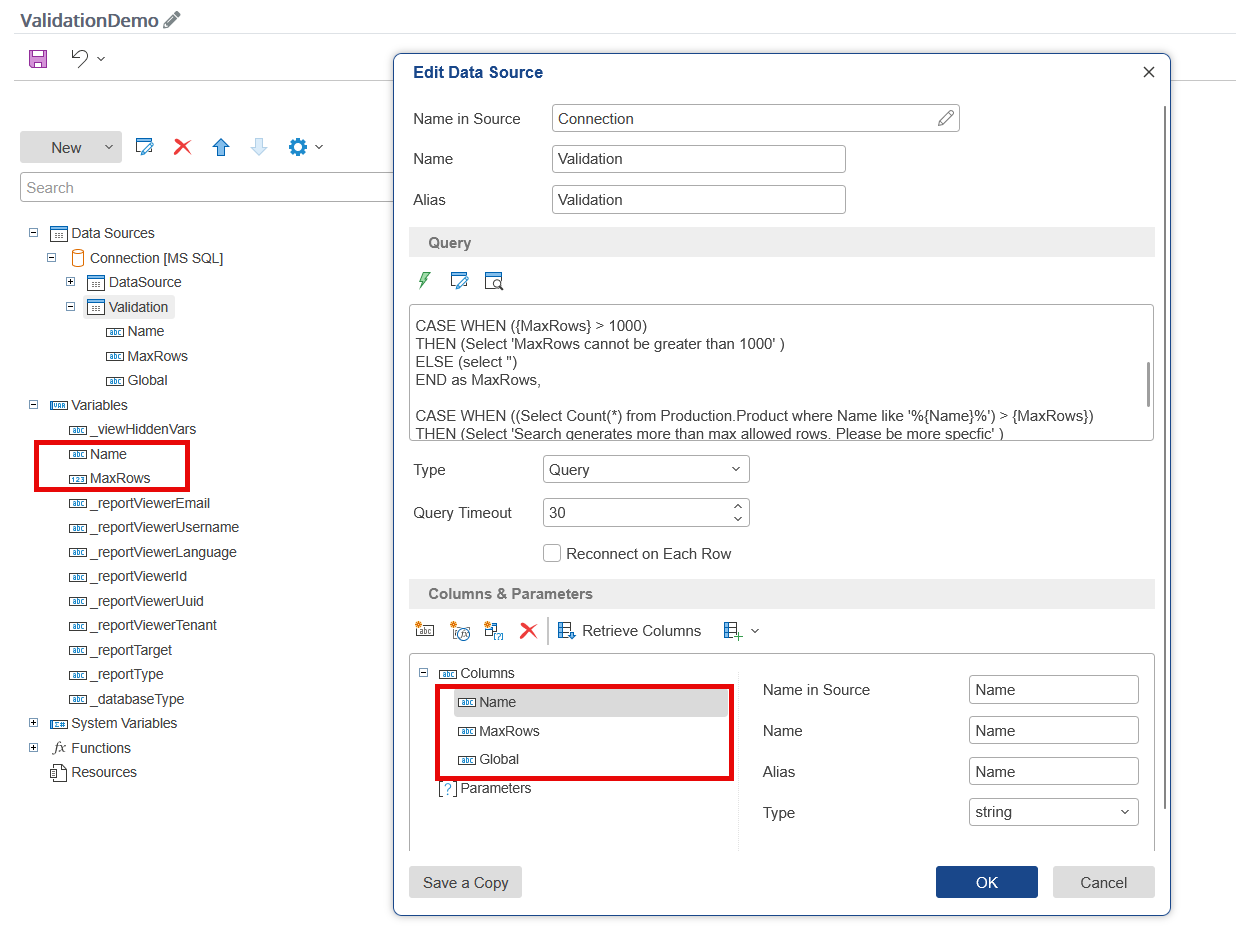
This data source must be called Validation and its query must include columns bearing the same name as the variables we wish to validate. Additionally, the validation data source may include the Global column, which contains the global validation.
To create a validation data source, do the following:
- Create a new data source and name it Validation. For more details on the setup process, see Creating a new data model.
- Add a column with the exact same names as variables you wish to validate (see the Name and MaxRows variables and columns in the example below). For more details on editing the query, see Data source editing.
|
Caution Column names must exactly match the variable names. Otherwise, validation will be bypassed. |
- In the Query section, specify how you validate each column. See the following example for the MaxRows column in SQL code:
CASE WHEN ({MaxRows} > 1000)
THEN (Select 'MaxRows cannot be greater than 1000' )
ELSE (select '')
END as MaxRows
- You can optionally create a Global column. To do so, specify the Global validation column in the Query section. The following example shows that the global validation message uses the variables that we previously specified for the columns (such as the maximum number of rows and the name restrictions).
CASE WHEN ((Select Count(*) from Production.Product where Name like '%{Name}%') > {MaxRows})
THEN (Select 'Search generates more than max allowed rows. Please be more specfic' )
ELSE (select '')
END as Global
The data designer creates the data source and defines validation rules for each filter variable. Once the data source is defined, it will be used and validated when filtering the reports and the appropriate messages will be shown when and if necessary.