Reports tab
After a successful login, the Reports page in Reporting opens. You can view, print and export reports and report views.
The main parts of the Reports tab are as follows:
- Reports pane on the left side of the screen,
- Search bar,
- Report tiles in the central part,
- Sorting tools

Reports pane
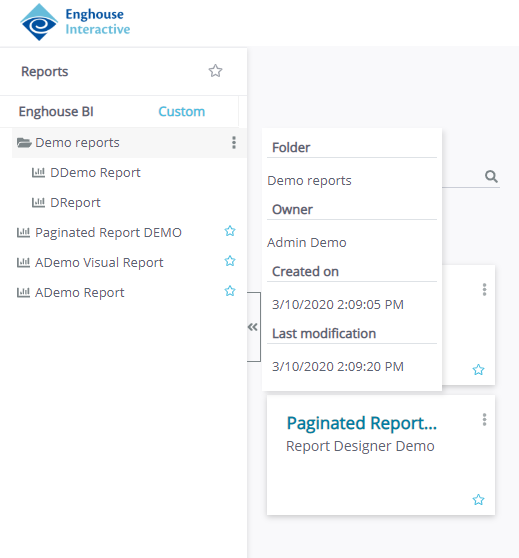
In the Reports pane, on the left-hand side of the screen, a list of available assets that are shared with the logged-in user is provided. The Reports pane can be hidden by clicking the arrows on the left outer edge of the pane.
Depending on how the report Designer organized the assets, they can be standalone or arranged in folders. All assets belonging to a folder are slightly indented and listed under the folder title.
The Reports list is also divided into two sections. These sections are available in the two tabs in the upper part of the Reports pane. They are as follows:
- Reporting premade reports and views, provided by Enghouse Interactive, and
- Custom reports, where all reports or views that are custom-created by the users of your system are stored.
Hovering the pointer over a folder or asset name opens a pop-out with an overview of details about the asset or folder, including the name, Owner and relevant dates.
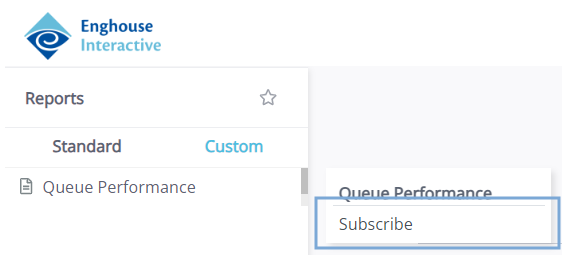
Clicking the Options of an asset, either in the Reports pane or one of the report tiles, opens a new menu. Here you subscribe to an asset. The Subscribe option is described in detail in Automated report delivery.
Sort and search
All the assets are available in the Reports main window, in form of tiles in the central part of the window. If there are assets grouped in folders in the Reports pane, this structure is not shown in the Reports window, as all the reports and views are shown individually. However, the assets can be sorted and searched through for easier access.
Sorting is performed alphabetically or by creation date, in ascending or descending order. The buttons for sorting control are at the top-right corner of the main window, under the Reports window title.
A Search reports input field is available for quick asset locating. The search filter is applied as you type and it instantly displays the results of your search. This search filter does not apply to the Reports pane, only the tiles.
