How to configure Khomp Flow
Configure Khomp Flow to connect to ACC Dialer and the Altitude vBox architecture.
The following is a guideline of the steps needed to configure Khomp Flow to integrate with ACC Dialer, Altitude vBox, and the Communication Server.
|
Important The Khomp Flow configuration should be done by a Khomp technician. |
Prerequisites
The following steps are the base configuration for integrating Altitude vBox WebRTC with the Khomp components.
Check if you already have the following entities configured. If you do not, please configure them.
Login to Khomp Flow.
- Configure the Khomp SBC PSTN NAP.
- Select the tab Configuration.
- Select the panel Routing > NAPs.
- Click New NAP.
- Configure the Khomp SBC PSTN NAP.
- Name: Enter the name of the NAP.
- Type: Select SIP.
- Domain: Enter the IP address of Khomp SBC PSTN.
- Network interface to be used for SIP protocol: Select the IPV4 network interface.
- Network interface to be used for RTP protocol: Select the IPV4 network interface.
- Options > Match origin by IP packet address: Select the checkbox.
- Click Save.
- Click Apply.
- Configure the Altitude vBox NAP.
- Select the tab Configuration.
- Select the panel Routing > NAPs.
- Click New NAP.
- Configure the Altitude vBox NAP.
- Name: Enter the name of the NAP.
- Type: Select SIP.
- Domain: Enter the IP address of Altitude vBox.
- Network interface to be used for SIP protocol: Select the IPV4 network interface.
- Network interface to be used for RTP protocol: Select the IPV4 network interface.
- Options > Match origin by IP packet address: Select the checkbox.
- Click Save.
- Click Apply.
- Configure a route from Khomp SBC PSTN to Altitude vBox.
- Select the tab Configuration.
- Select the panel Routing > Routes.
- Click New Route.
- Configure the new route.
- Name: Enter the name of the route.
- Origin NAP: Select the Khomp SBC PSTN NAP.
- Destination NAP: Select the Altitude vBox NAP.
- Click Save.
- Click Apply.
- Configure a route from Altitude vBox to Khomp SBC PSTN.
- Select the tab Configuration.
- Select the panel Routing > Routes.
- Click New Route.
- Configure the new route.
- Name: Enter the name of the route.
- Origin NAP: Select the Altitude vBox NAP.
- Destination NAP: Select the Khomp SBC PSTN NAP.
- Click Save.
- Click Apply.
Integration with ACC Dialer
Execute the following steps:
- Create scripts.
- Select the tab Configuration.
- Select the option Routing > Scripts.
- Create a script to allow recording calls from ACC Dialer.
Implement the script described in Recording and ACC Dialer (8.6.1080-).
- Click Save.
- Click Apply.
- Configure the ACC Dialer NAP.
Note
If you have multiple replicas of ACC Dialer, configure one ACC Dialer NAP for each replica, using different ports. The first replica listens on port 5060, the second on port 5061, and so on.
- Select the tab Configuration.
- Select the panel Routing > NAPs.
- Click New NAP.
- Configure the ACC Dialer NAP.
- Name: Enter the name of the NAP.
- Type: Select SIP.
- Routing script: Select the routing script described in Recording and ACC Dialer (8.6.1080-).
- Domain: Enter the IP address of ACC Dialer.
- Network interface to be used for SIP protocol: Select the IPV4 network interface.
- Network interface to be used for RTP protocol: Select the IPV4 network interface.
- Options > Match origin by IP packet address: Select the checkbox.
- Click Save.
- Click Apply.
- Configure Drop behaviors.
- Select the tab Configuration.
- Select the panel Routing > Profiles > Drop.
- Add Drop behaviors.
Add the following Drop behaviors for Voicemail, Fax, and OperatorMessage:
Name
SIP Code
VoiceMail
408
Fax
409
OperatorMessage
407
- Configure an Analytics behavior.
- Select the tab Configuration.
- Select the panel Routing > Profiles > Analytics.
- Click Add.
- Define the call classification settings.
- Name: Enter the name of the call classification setting.
- Locale: Select the locale of the call classification setting.
- Behaviors: For each behavior, for example, voice mail, answering machine, etc, select an Action and a Drop behavior.
- Click Save.
- Click Apply.
- Configure the interception announcement behavior.
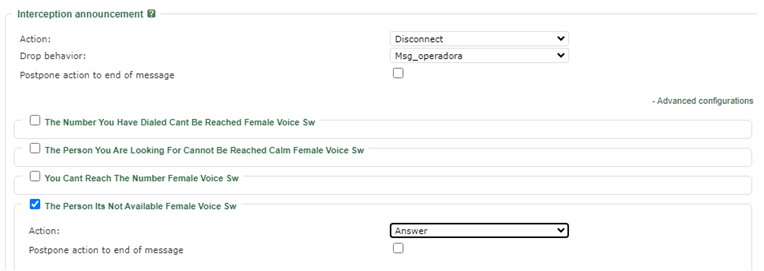
Enable advanced configurations of interception announcement if Khomp Flow is classifying calls as interception announcement for messages like, for example, the person is busy. In this case, do the following:
- In the Analytics behavior, click Advanced configurations.
- Select an interception announcement behavior.
Tip
If you do not have any options to select, please contact your Khomp technician.
- For each option, select an Action, and a Drop behavior.
- See How to configure interception announcement in ACC Dialer to know how to map the SIP codes to the interception announcement configurations in ACC Dialer.
- Click Save.
- Click Apply.
- Configure a General Profile.
- Select the tab Configuration.
- Select the panel Routing > Profiles > General.
- Copy the profile named Default.
- Configure the new profile.
On the new profile, configure the following attributes:
- Name: Enter the name of the profile.
- Call classifier > Destiny: Select the configured Analytics behavior.
- Click Save.
- Click Apply.
- Configure a route from ACC Dialer to Khomp SBC PSTN.
Note
If you have multiple replicas of ACC Dialer, configure one route for each replica.
- Select the tab Configuration.
- Select the panel Routing > Routes.
- Click New Route.
- Configure the new route.
- Name: Enter the name of the route.
- Priority: Enter a positive priority. For example, 5.
- Origin NAP: Select the ACC Dialer NAP.
- Caller: Enter a caller pattern. For example, ^(CC#).*$. The CC# is added by the routing script.
- Destination NAP: Select the Khomp SBC PSTN NAP.
- Remap Caller: Enter a caller pattern. For example, /CC#(.*)/$1/.
- Destination Profile: Select the previously created General Profile.
- Click Save.
- Click Apply.
- Configure a route from ACC Dialer to Altitude vBox.
Note
If you have multiple replicas of ACC Dialer, configure one route for each replica.
- Select the tab Configuration.
- Select the panel Routing > Routes.
- Click New Route.
- Configure the new route.
- Name: Enter the name of the route.
- Origin NAP: Select the ACC Dialer NAP.
- Called: Enter a called extension pattern. For example, use the pattern ^(6[0-9]{3})$ to send calls to extensions 6XXX.
- Destination NAP: Select the Altitude vBox NAP.
- Destination Profile: Leave Use NAP Profile.
- Click Save.
- Click Apply.
- Add a new SIPREC server.
Attention
Only execute this step if you are using QMS and you have not added a SIPREC server.
- Select the tab Configuration.
- Select the option Recording > SIPREC.
- Add a new SIPREC server.
- Type: Select Server.
- Domain: Enter the IP address of the QMS server.
- Domain port: Enter 5060.
- Click Save.
- Click Apply.
- Add the SIPREC server to the route from ACC Dialer to Altitude vBox.
Note
If you have multiple replicas of ACC Dialer, configure the SIPREC server for each ACC Dialer route.
- Select the tab Configuration.
- Select the option Routing > Routes.
- Select the route from ACC Dialer to Altitude vBox.
- Set the RecNAP to the SIPREC server.
- Click Save.
- Click Apply.