How to search
Search in the Choose items dialog
You can search for items in generic lists, card-type lists (Agents and Permission Profiles), and the Choose items dialog.
Each page shows up to 50 items and the total number of items appears in brackets, for example, AGENTS (210). When you search for items or sort the list by clicking the column heading, the total number of items are searched or re-ordered.
To view the next group of 50 items, scroll to the end of the page.
To search, type the search criteria in the search box. After 1 second of inactivity, the search starts automatically. You cannot type additional criteria while the search result is loading.
Search generic lists
The following example searches for teams that contain "V". The number of filtered teams that match the criteria appears in brackets, in front of the total, for example, Teams (2/6).

Search card-type lists
You can search for agents by their login ID, first name, last name, description, skills, or groups. To search by their full name, enter [first name]+[last name], for example:

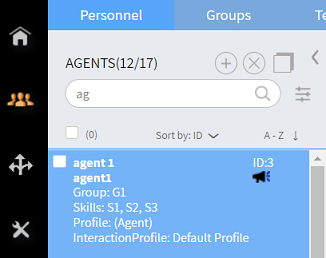
The following example searches for agents that contain "ag". The number of filtered agents that match the criteria appears in brackets, in front of the total, for example, AGENTS (12/17).
Search in the Choose items dialog
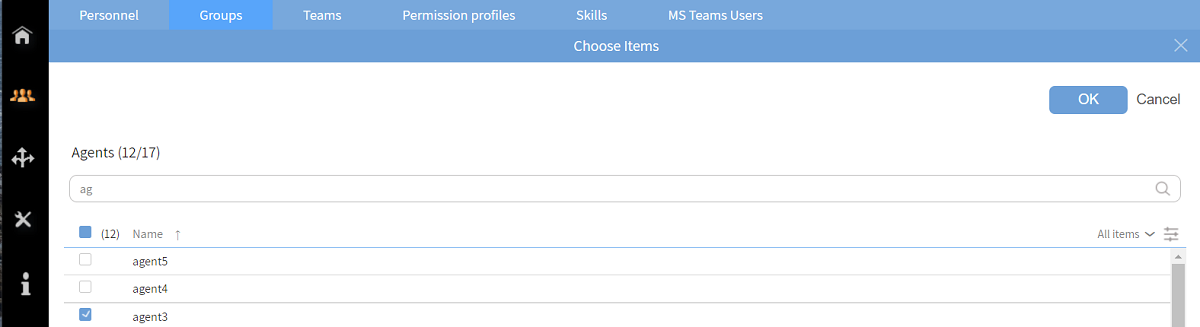
The following example searches for agent names that contain "ag".