Log in using Unified Admin
See also Log in.
Unified Admin is a portal application for tenant administrators that presents the administration applications you are allowed to access.
|
Note If you are allowed to access only one administration application, you go straight into that application without seeing the App Selector page. |
- If you are not already logged in:
- If you are using the general application URL, for example, https://ccsp1.pj16.loc/AuthServer/Pages/AppSelector.aspx, the Welcome to CCaaS page will appear. Type your Username in User Principal Name (UPN) format, for example, [email protected], and click Continue.
- If you are using the tenant's direct login URL, for example, https://ccsp1.pj16.loc/portal/t1/apps, you do not see this page. Instead, go straight to step 2.
- The next step depends on the identity provider configured by your administrator:
- For Auth Server, if it is not already present, type your Username in User Principal Name (UPN) format, for example, [email protected]. Type your Password and click Log in. The App Selector page displays buttons for the administration applications you are allowed to access.
If necessary, see Password expired message or Additional login messages.
Alternatively:
- If you are using the general application URL and your system is set up with an identity provider, click Login with your identity provider.
- To change the username, click Change user to go to the Welcome to CCaaS page.
- For ADFS, you are redirected to the ADFS login page to authenticate. Please consult your local procedures for how to proceed from this point.
- For Enghouse Identity Server (EIS), you are redirected to the EIS login page. Type your Password and click Log in. The App Selector page displays buttons for the administration applications you are allowed to access.
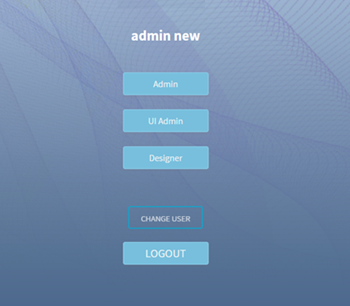
- Click the Admin button. The main CCaaS Admin page appears.
Next, see Tenant view.
App selector menu
To open the other administration applications you are allowed to access, click  App selector at the top left of the main CCaaS Admin page, and then click the appropriate button.
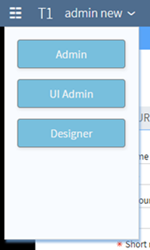
Each application opens in its own browser window. You can open several CCaaS Admin tabs in the same browser.