Check Date

This block routes calls based on the date criteria you select.
|
Properties |
Values |
Description |
|---|---|---|
|
Time Zone |
Local |
The current local date for the connection server is used. |
|
GMT |
The current GMT date is used. |
Configure the Check Date block
- Right-click the block and click Add case.
- Click one of the following options and follow the corresponding instructions:
- Date
- Day of week
- Holiday
- Connect the Case
branch
 to the appropriate
block in the script.
to the appropriate
block in the script. - Connect the Else
branch
 to the appropriate
block in the script.
to the appropriate
block in the script.
Configure date
- In the Date dialog, select a single date or a block of dates.
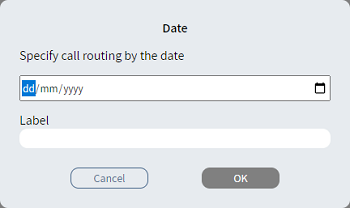
- Optionally, in Label, type an alternative description.
- Click OK. The Case branch appears.
Configure day of week
- In the Day-Of-Week dialog, select one or more days.
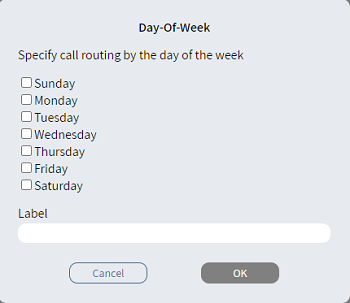
- Optionally, in Label, type an alternative description.
- Click OK. The Case branch appears.
Configure holiday
- In the Holiday dialog, select one or more holidays.
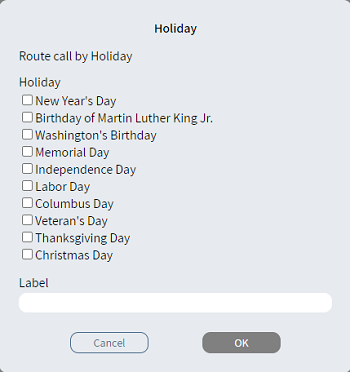
- Optionally, in Label, type an alternative description.
- Click OK. The Case branch appears.
|
Note
|