Menu

VCS only.
This block specifies menu behavior.
|
Properties |
Values |
Description |
|---|---|---|
|
Menu Prompt |
Filename |
The sound file to play for menu options. Enter a URL address to the file you wish to play. |
|
Invalid Prompt |
Filename |
The sound file to play for an invalid choice. Enter a URL address to the file you wish to play. |
|
No Entry Prompt |
Filename |
The sound file to play if the caller does not enter anything within Max Time. Enter a URL address to the file you wish to play. |
|
Termination Digits |
0‑9 # and * |
Enter digit(s), # or * . These value(s) can be used by the caller to terminate this command. For example, to allow any touch tone to be a termination digit, set this to 1234567890#* |
|
Clear Digits |
Yes or No |
Clear the digit buffer of any digits entered before playing the audio file. The default is No. |
|
Max Time |
Integer |
Maximum amount of time in seconds to wait for the entire string of digits. The default is 3. Note Typically 3 is too low a number to work reliably and this value is set to 10 or 3 x number of digits to be entered. |
|
Max Tries |
Integer |
Maximum number of times the caller can respond to a prompt. The default is 1. |
|
Result Variable |
String |
Name of a variable into which the digit string is to be passed. Must start with an alphabetic character and not exceed 255 characters in length. There is no default value for this, so leaving this field blank causes this block not to function properly. See How to use variables. |
|
Line |
Inbound |
The next block in the script is applied to the original (incoming) call. |
|
Outbound |
The next block in the script is applied to the outbound call (to where the call is transferred). |
Configure the Menu block
- Right-click the block and click Add case. The Menu dialog appears.
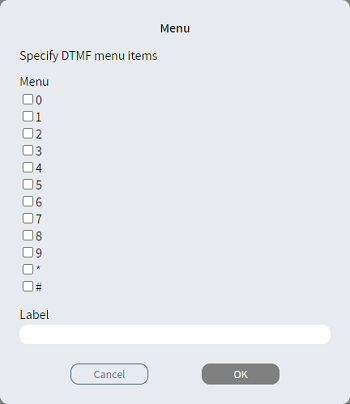
- From the Menu list, select one or more menu items.
|
Note This item is a key press option for the caller. If you select more than one digit, the case accepts any one of your selected digits if it matches caller input. |
- Optionally, in Label, type an alternative description.
- Click OK. The Case branch
 appears.
 - Connect the Case branch to the appropriate block in the script.
- Repeat steps 1-5 to add the branches you need.
- Connect the Else
branch
 to the appropriate
block in the script.
to the appropriate
block in the script.