Edit survey questions
- On the Post Survey page, in the survey's row, under Actions, click
 and then click
  View Survey. The Survey Questions dialog appears.
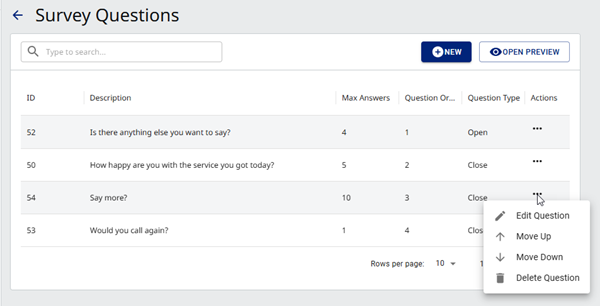
From here you can:
Add a new question
- In the Survey Questions dialog , click
 . The Add Survey Question dialog appears.
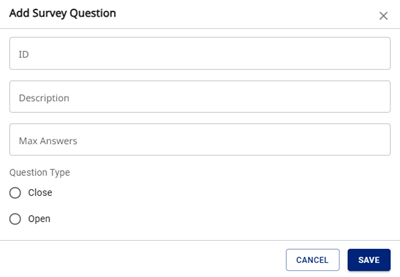
- Enter the following information:
- ID — a number that is unique in this survey.
- Description — the question text.
- Max Answers — the maximum possible answers. For a Yes/No answer, enter 1 and select the Closed Question Type.
- Question Type — select one of the following:
- Closed — select to include stars or a check box/switch.
- Open — select to include a text input area.
- Click Save. The message successfully added appears and the new question appears on the Add Survey Questions page.
Edit a question
- In the Survey Questions dialog, in the question's row, under Actions, click and then click
 Edit Question. The Edit Question dialog appears.
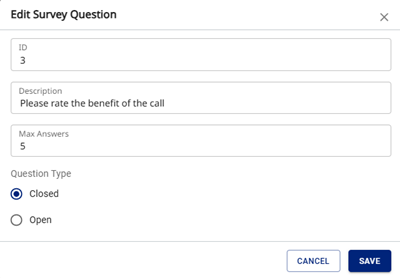
- Change the information, as required.
- Click Save. The message Successfully changed appears.
Change question order
In the Survey Questions dialog, in the question's row, under Actions, click and then click  Move Up or
  Move Down, as appropriate.
Delete a question
- In the Survey Questions dialog, in the question's row, under Actions, click and then click
 Delete Question. The Delete Survey Question dialog appears.
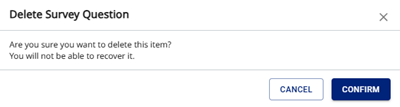
- Click Confirm. The message Successfully deleted appears.