Add a template
|
Note If you attempt to reuse a template name, the Adding Template Failed message appears. |
- On the Templates page, click
 . The Add Template dialog appears.
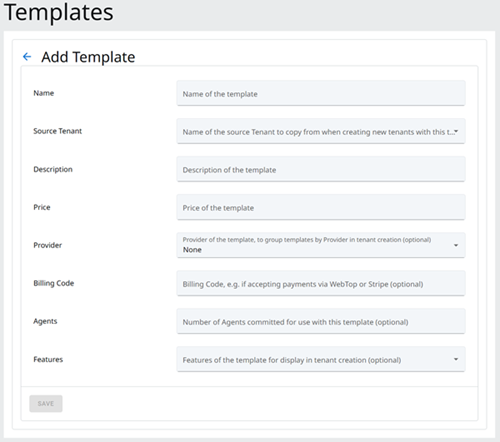
- Enter the following information:
- Name — enter a unique name for the new template. This name appears on the self-service Provisioning Portal.
- Source Tenant — select a tenant in the list.
- Description and Price — enter the information to display on the self-service Provisioning Portal.
- Provider (optional) — select the Provider to allocate the new template to.
- Billing Code (optional) — enter the code to use.
- Agents (optional) — enter the number of agents committed for use with this template.
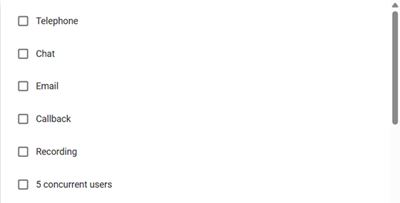
- Features (optional) — select the features to enable for the template.
- Click Save. The new template appears on the Templates page.