Edit a flow placeholder
- On the Flows page, select the application in the Application list.
- In the flow placeholder's row, click
 . The Flows dialog appears.
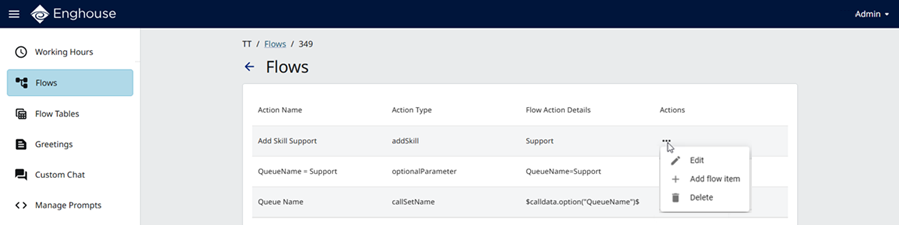
From here you can:
Supported action types
Provisioning Portal has eight action types that inherit selected actions defined in XMLInterrupter.vbs for Designer. The following table shows the mapping.
|
Provisioning Portal
|
Designer block |
|---|---|
|
addSkill |
Add Skill |
|
callSetName |
Queue Name |
|
hangup |
Hangup |
|
optionalParameter |
Optional Parameters |
|
playAudio |
Play Audio |
|
recordVoicemail |
Record Voicemail |
|
Add Menu |
Menu |
|
TransferCall |
Transfer Call |
|
Terminate |
Terminate |
|
Get Agent Statistics |
Get Agent Statistics |
|
Get Queue Statistics |
Get Queue Statistics |
Provisioning Portal defines five additional actions types that are available for Provisioning Portal use only.
Some of these actions provide the ability to link (point with an arrow) a block in the script to a placeholder. Linking is only possible in the same script.
Other actions combine existing Designer block and XMLInterpreter change behavior.
|
Provisioning Portal
|
Description |
|---|---|
|
setLanguage |
Use the block Optional Parameter to save the desire language for play the prompts. The supported languages list comes from the Manage Prompts page. |
|
SetTimeZone |
Use the block Optional Parameter to save the desire time zone that you want to use with the Working Hours flow. |
|
Menu List |
Links a selected block to a selected menu placeholder in the script. |
|
Working Hours List |
Links a selected block to a selected working hours placeholder in the script. This feature also adds a working hours placeholder to the script, if it does not exist. |
|
Flow List |
Links a selected block to a selected flow placeholder in the script. |
Edit a flow action
- In the action's row, under Actions, click
 and then click
  Edit. The Edit dialog appears.
 - To specify values for the remaining fields, refer to the on-screen instructions and Designer Help.
- Click Save.
Add a flow item
|
Note
|
|
Stop When assigning a flow with a Flow List block, be very careful not to create an infinite loop. For example:
|
- Do one of the following:
- To add the first action, click
 .
. - To add another action, in the action's row, under Actions, click and then click
 Add flow item.
The Add flow item dialog appears.
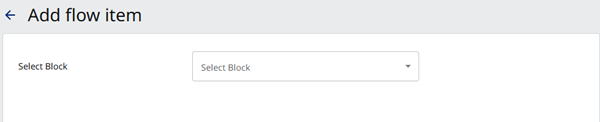
- Enter the following information:
- Select Block — select the action from the list.
- Block Name — enter a unique name.
- Click Next.
- To specify values for the remaining fields, refer to the on-screen instructions and Designer Help.
- Click Save.
Delete a flow action
- In the action's row, under Actions, click and then click
 Delete.
 - In the Delete Flow Action dialog, click Delete.