Edit a flow table
- On the Flow Tables page, select the application in the Application list.
- In the flow table's row, under Actions, click
 and then click
  Edit. The Flow Tables dialog appears.
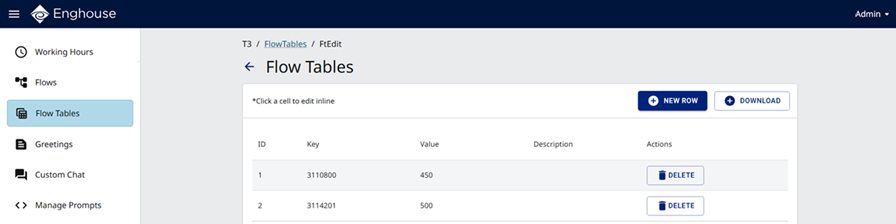
From here you can:
Add a new row
- In the Flow Tables dialog, click
 . The Add Row dialog appears.
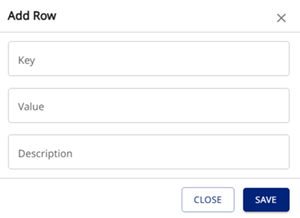
- Enter the Key, Value, and Description.
- Click Save.
Edit existing data
- In the Flow Tables dialog, click on the specific field you want to change. An edit box appears.
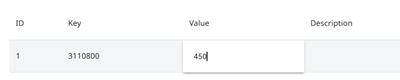
- Edit the data.
- Click outside the field.
Delete a row
- In the Flow Tables dialog, in the key's row, under Actions, click
 . The Delete Flow Table Item dialog appears.
 - Click Confirm.
Download a flow table
- In the Flow Tables dialog, click
 .
. - The current data is saved as a CSV file to your downloads folder.