Use a flow table in Designer
|
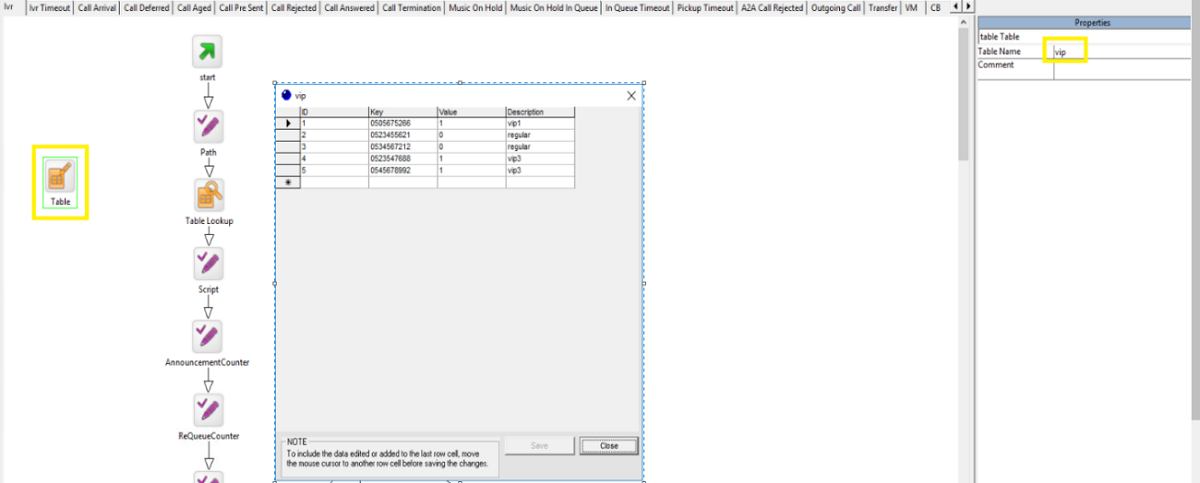
Note Although you can see the content of the flow table in Designer, by using the Table block, you can only edit the table in the Provisioning Portal. |
After you publish your flow table, to use it you need to edit your application using Designer.
- In your application, add a Table Lookup block.
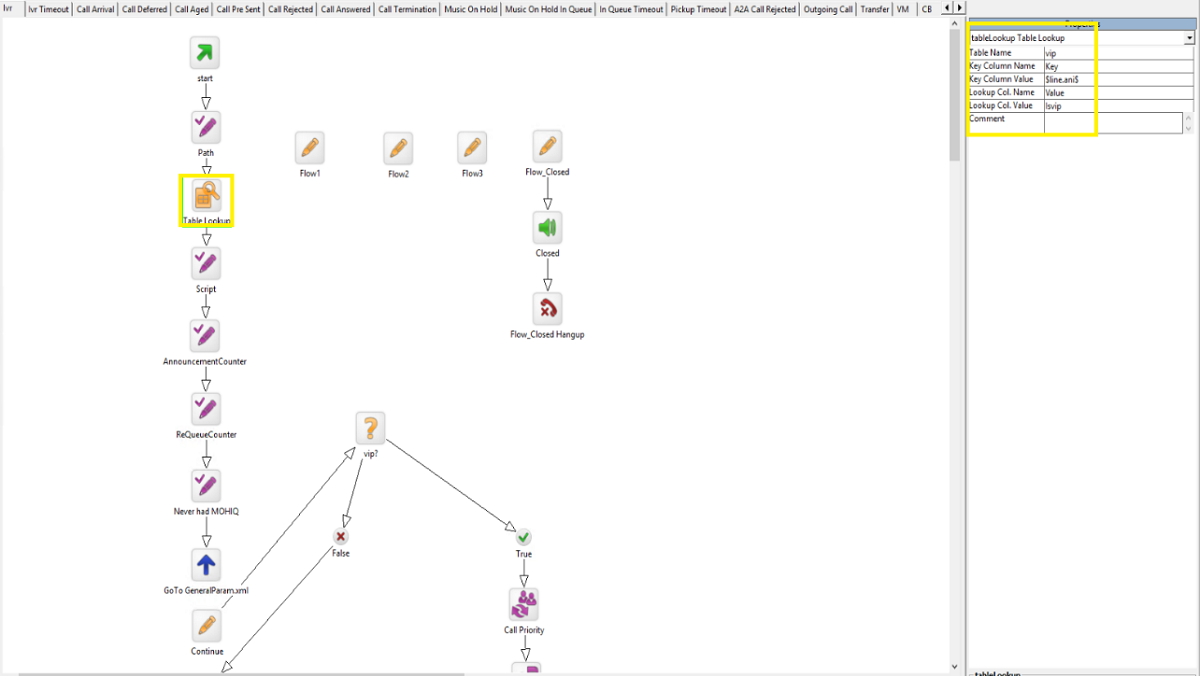
- Set the Table Lookup block's properties as shown in the example below.
|
Field |
Description |
|---|---|
|
Table Name |
vip – the name of the flow table (without .xml). |
|
Key Column Name |
Key – name of the column to search. Can also be – Value,Description |
|
Key Column Value |
$line.ani$ - the value to search for. In this example we search for the customer's ani in the Key column. |
|
Lookup Col.Name |
Value – the value to return if the search value is found. In this example we insert the name of the column. Can also be – Key,Description |
|
Lookup Col.Value |
Isvip - the name of the result parameter. |
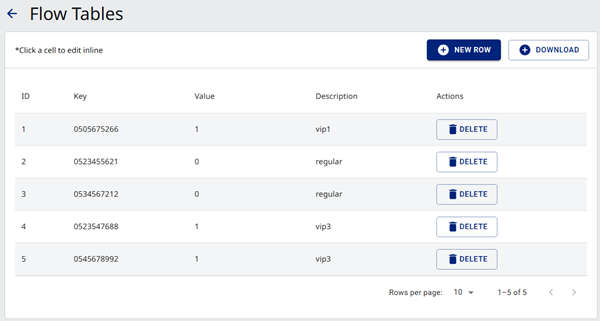
We search according to the Key column and if we find our line.ani, we return the value of Value column -> 1
- After that, in your application you can ask about the result of your lookup and decide how to act according to the result
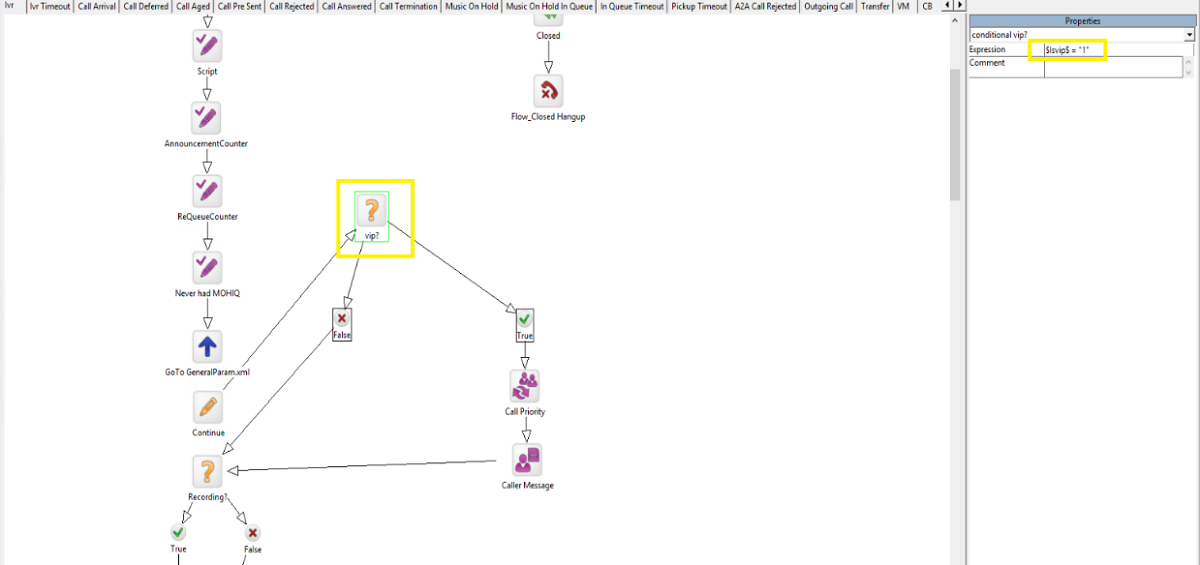
In this example, we use the block condition to check if our result parameter (Isvip) is equal to 1 $Isvip$ = "1":
- If True – it will set a new priority for the call, add a message to the agent that this customer is VIP, and continue with the regular flow.
- If False – it will continue with the regular flow.