Edit languages and labels
|
Caution Prompt languages are fully customizable by the tenant, however the language codes defined by the service provider should not be removed. |
|
Note You can delete a language code only if there are no audio files associated with it. After an audio file is associated in a prompt with a language code, the language code cannot be deleted, even if the associated prompts are successfully removed. This is because deleted prompts are marked inactive instead of being actually removed from the Provisioning Portal database. If you want to delete unwanted languages, prompts, and audio files, contact Enghouse Interactive Support. |
The default language codes are En (for English) and Sp (for Spanish). The language code En is referenced for playing any audio files before the caller had made a language selection in the IVR. By default the caller is prompted for language selection through the Menu_Lang placeholder in the Flows module.
Labels help organize prompts. Each prompt can be associated with zero or more labels.
- On the Manage Prompts page, click the Languages & Labels tab.
- The Edit Languages & Labels dialog appears.
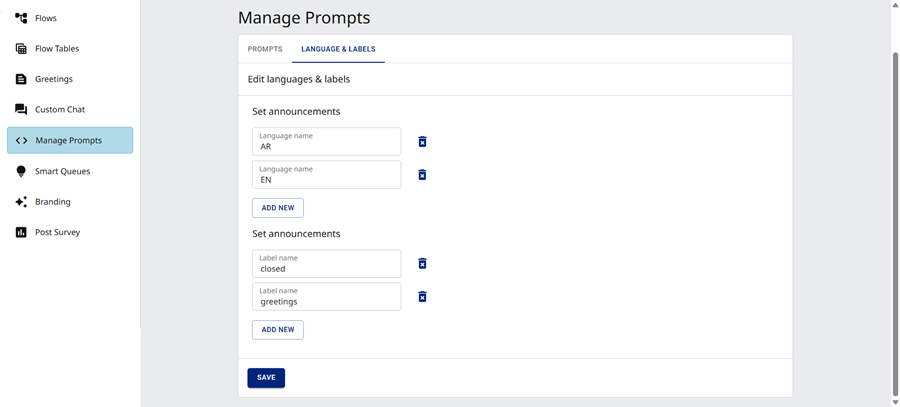
From here, you can:
- Edit a language or label, by clicking in the Language name box or Label name box.
- Add a new language or label.
- Delete a language or label, by clicking the corresponding
 .
.
- To return to the Prompts tab, click Save.
Add a new language or label
- Click Add New at the bottom of the language or label section. An empty box appears at the bottom of that section.
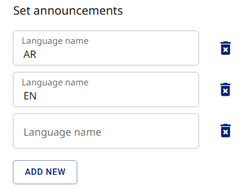
- Enter the new language name or label name.
- Click Save.