Add queue parameters
|
Note When all queues have been declared for Smart Queues, the Select Queue dialog does not open. |
|
Caution Although you can change a queue's name on the Queues page in the Admin module, after a queue has been added in Smart Queues, the name change is not reflected in Smart Queues. This is a known limitation. You must re-add the updated queue name in Smart Queues and redo the relevant Smart Queues configurations for the updated queue name. In addition, you must replace references to the old queue name with the updated queue name in Flows and Smart Queues. For example, replace the value of the optionalParameter action type called QueueName = Sales with the updated queue name, and replace the value of Callback Queue Name for Callback action type of Smart Queues parameters with the update queue name. This applies to both the standard and custom templates. The queues affected in the standard templates are Support and Sales. |
- On the Smart Queues page, select the application in the Application list.
- Click
 . The Select Queue dialog appears.
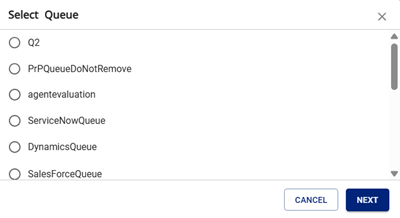
- Select a queue and click Next.
- The Add Queues Parameters dialog appears.
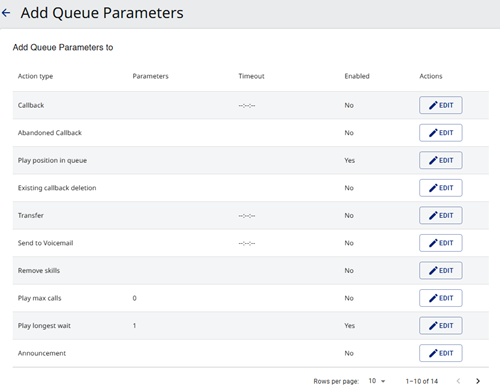
- Configure the action-type parameters as described in the following topics: