Item properties
After opening the relevant resource item list, click the particular item in the list to view/edit its properties in a dialog or, for tenants, personnel, and permission profiles, on tabs.
The following example shows the Group: G1 dialog.
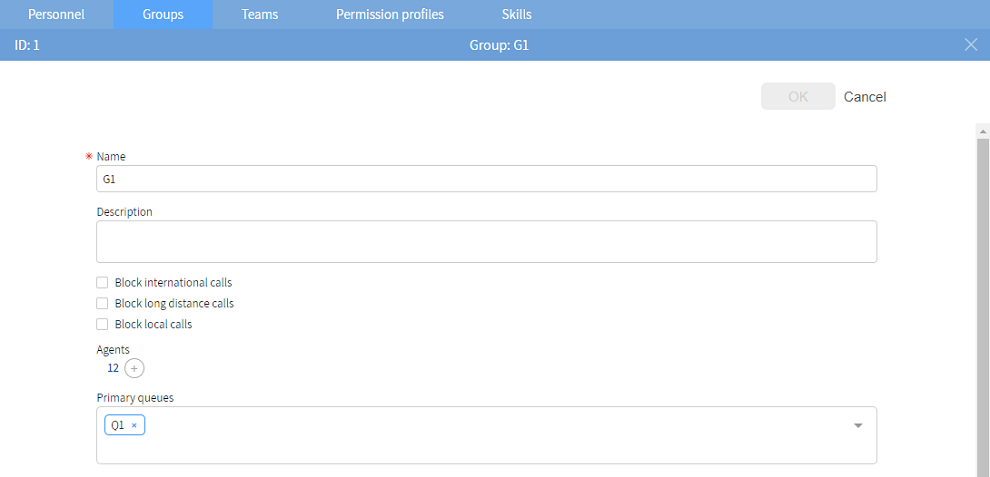
Mandatory fields
Mandatory fields are marked with a red asterisk (*).
Error messages
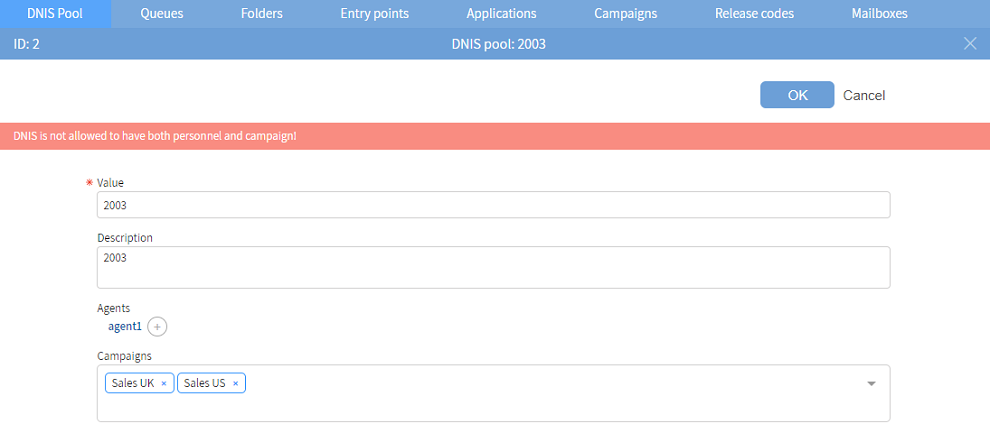
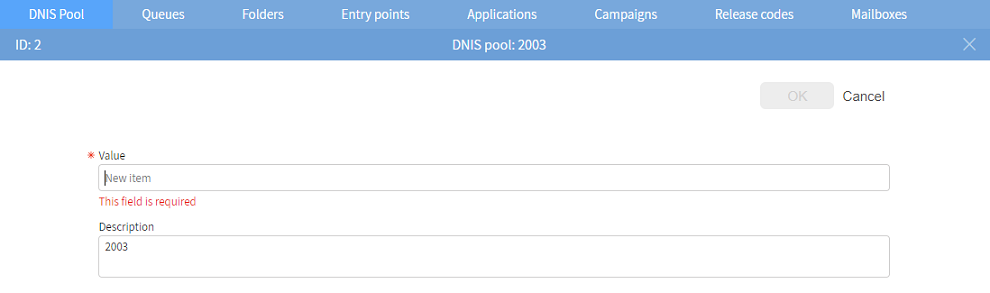
Error messages are displayed when you click OK, either at the top of the screen (error from server) or below the field (client validation).
Single item selection
To select a single item:
- Select the item by clicking it or pressing Enter.
- Search by typing the item's name.
To remove a single item, unselect the item by clicking it or pressing Enter.

Multiple item selection
To select multiple items:
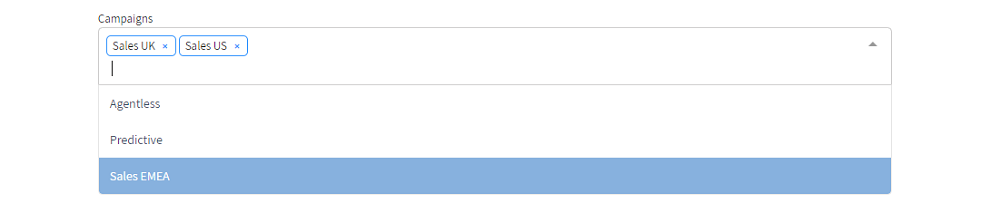
- Select each item by clicking it or pressing Enter. Each selected item appears in a bubble.
- Search by typing the item's name.
To remove multiple items, remove each item by clicking the X in its bubble.
When there are more than 50 items to select from and for agents,  appears next to the field.

Click to open the Choose items dialog.
To select:
- A single item, click the row and then click OK.
- Multiple items, select the appropriate check boxes and then click OK.
To remove items, clear the appropriate check boxes and then click OK.
The counters show the total number of items, the number displayed, and the number selected. For details, see the counters in Lists.