Configure the settings and preamble
Use the Settings and Preamble section of the Greetings page to optionally provide a common audio that is played before the agent-specific audio, called the preamble audio.
You configure this per tenant or per queue, depending on the mode you select on the Greetings page. See Select the mode.
|
Note If you selected the Per tenant mode, the Queue ID is always -1 and the Queue Name is All. If you selected the Per queue mode, you need to select the queue to configure from the Queues list. |
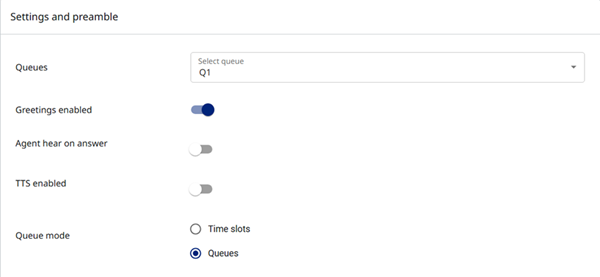
- On the Greetings page, in the Settings and Preamble section, enter the following information:
- Queues — if you selected the Per queue mode, select the queue to configure from the list.
- Greetings enabled — if you do not want to play a greeting for this queue, turn off Greetings enabled. If you selected the Per tenant mode, this disables greetings functionality across the tenant.
- Agent hear on answer — if you want the greeting audio heard by callers to also be heard by the agent, turn on Agent hear on answer.
- TTS enabled — if you want to use the optional TTS service to play the greeting audio if none is recorded, turn on TTS enabled.
When you turn on TTS enabled, the Set language and Enter message boxes appear. Enter the required information.
|
Note TTS functionality is optional. Refer to the Provisioning Portal Deployment Guide and the TTS-specific deployment. |
- Queue mode - select one of the following:
- Time slots — select if you want to define timespans of the day for playing different greeting audios. The Select time zone list, and Add Time Slot button appear. Continue at step 2.
- Queues — select if you want to play a single recording preamble for the queue. Continue at step 3.
|
Note Both modes allow an optional preamble audio. This is a common audio that is played before the agent-specific audio. When using Chrome with HTTPS, you can record audio from Provisioning Portal using the record icon. Existing audio can be downloaded for review. |
- If you selected Time slots:
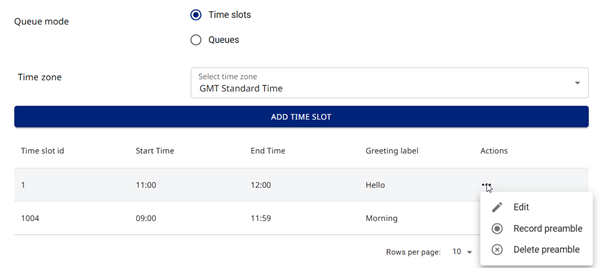
- If you need to change the Time zone, select the new time zone from the list.
- If you need to add another time slot, click Add Time Slot. See Manage timeslots below.
- In the Timeslot table:
- To edit a time slot, in the time slot's row, under Actions, click
 and then click
  Edit. See Manage time slots below.
 - To record a preamble for a time slot, in the time slot's row, under Actions, click and then click
 Record preamble. See Record a greeting, from step 3.
 - To delete an existing preamble for a time slot, in the time slot's row, under Actions, click and then click
 Delete preamble.
- If you selected Queues:
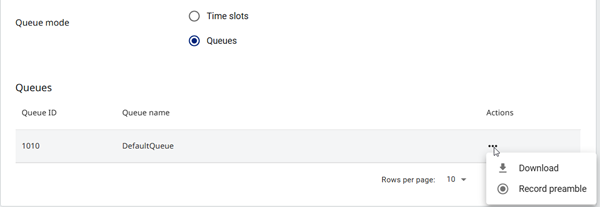
- To download an existing preamble, under Actions, click and then click
 Download. The wave file appears in your Downloads folder.
 - To record the preamble, under Actions, click and then click Record preamble. See Record a greeting, from step 3.
Manage time slots
- In Time slots mode:
- To add a time slot, click Add Time Slot.
- To edit a time slot, in the time slot's row, under Actions, click and then click Edit.
The Add/Edit Time Slot dialog appears.
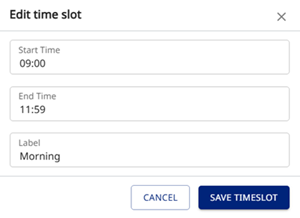
- Enter the following information:
- Start Time and End Time — enter the times in the format ##:##.
- Label — enter a name for the time slot.
- Click Save Time Slot.