Data Model Editor
The data model editor is used to set up all connections to data sources used in the data model. To enter the Data model editor, click a data model tile in the Data view or click on the more options button of a data model and then click Edit.
In the Data model editor window, the Dictionary is the left side pane. Its structure similar to the hierarchical folder structure of standard file explorers. For more information, see Dictionary.
After you’ve finished editing a data model—following the steps outlined in the Creating a new data model and Creating a data source sections—simply click the Save icon  to commit your changes. If you need to revert or reapply recent edits, you can also use the Undo and Redo button
 , which let you step backward or forward through your modification history before saving.
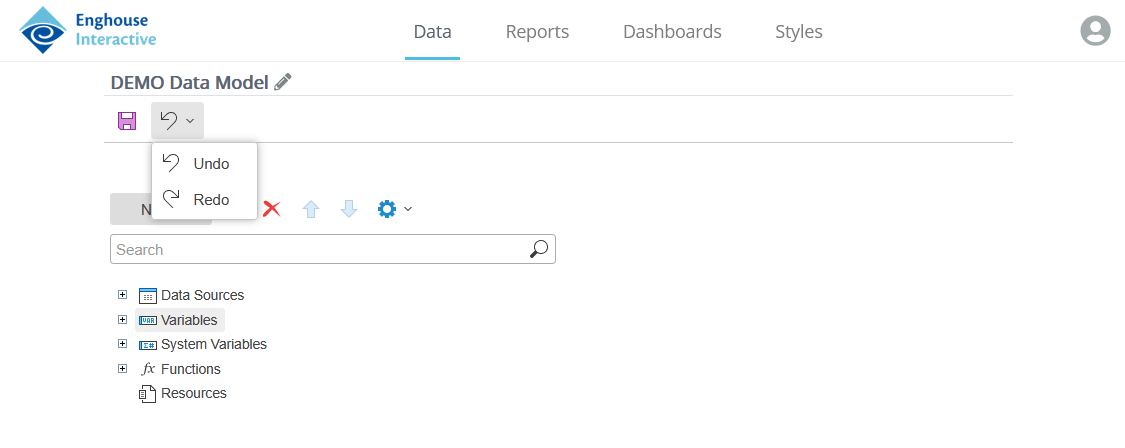
When creating a new data model, it is recommended to save it immediately after the data model editor opens. That way you can also give it a new and distinct name, thus avoiding using the default Datasource.
Type the name of the data model in File Name, then click Save.
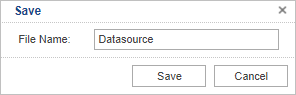
The name is then displayed above the save icon in the data model editor, and can be edited by clicking the pencil icon  .
.
