Manage permission profiles
|
Note CCaaS UI was previously called TouchPoint. |
View the Permission Profiles list
Permissions are assigned to users through permission profiles that are designed so that a number of users can be assigned a set of permissions simultaneously and uniformly.
Note
|
Permission profiles control access to the following objects, so it is best to configure these objects before creating the permission profiles:
- Groups
- Queues
- Teams
Default permission profiles
The predefined permission profiles are:
- Administrator and Agent
- Can set up and configure anything in the tenant contact center, including new permission profiles.
- Can use CCaaS UI.
- Cannot view CCaaS reports or play back recordings.
- Administrator and Supervisor
- Can set up and configure anything in the tenant contact center, including new permission profiles.
- Can view CCaaS Historical Reports and Dashboard reports for the whole tenant.
- Administrator
- Can set up and configure anything in the tenant contact center, including new permission profiles.
- Cannot view CCaaS reports or play back recordings.
- Cannot use CCaaS UI.
- Agent
- Can use CCaaS UI.
- Cannot view CCaaS reports or play back recordings.
- Cannot set up and configure anything in the tenant contact center.
- Supervisor (tenant-wide supervisor)
- Can view CCaaS Historical Reports and Dashboard reports for the whole tenant.
- Can play back recordings for the whole tenant.
- Cannot set up and configure anything in the tenant contact center.
- Team Supervisor
- Can supervise the teams to which they are assigned. Can also view reports and play back recordings only for the teams to which they are assigned.
- Can use CCaaS UI.
- Cannot set up and configure anything in the tenant contact center.
Note Users not assigned a permission profile have the permissions of agents. |
View the Permission Profiles list
- On the navigation pane, click
 Organization.
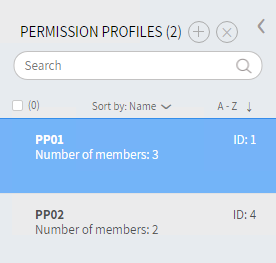
 - Click the Permission Profiles tab. The Permission Profiles list appears. For navigation information, see Card view and How to search.
Add a permission profile
- On the Permission Profiles page, click
 Add. The New permission profile page appears.
 - Click the Properties tab and enter the following information:
- Name (required) — the name of the profile.
- Description — a description of the profile.
- Allow create/delete — whether to allow an administrator with restricted permissions to create new objects or delete existing objects. If not selected, the administrator can only modify the properties of existing objects.
- Members — click
 Add items and select the agents to assign the permission profile to. See Filter for agents.
- Click the Permissions tab and assign the permission to the objects, as required.
- Click the Groups tab and assign the Report, Administer, Playback, and/or Supervise permissions to the groups, as required.
- Click the Queues tab and assign the Report and Administer permissions to the queues, as required.
- Click the Teams tab and assign the Report, Administer, Playback, and/or Supervise permissions to the teams, as required.
- Click Save changes.
Edit a permission profile
- On the Permission Profiles page, click the card of the item to edit. The [Permission profile name] page appears.
- Edit the information. For details, see Add a permission profile.
- Click OK.
Delete a permission profile
- On the Permission Profiles page, select the item/s to delete.
- Click
 Delete and then confirm the deletion.