Manage version history
|
Note
|
- Do one of the following:
- On the navigation pane, click
 Workspaces. In the Workspaces list, hover your mouse over the owning workspace and click
  Version history. See Open a workspace.
 - In the Workspace editor, in the workspace tab bar, select the owning workspace tab or snapshot tab. On the navigation pane, click
 Version History.
The Version History list appears.
- To see the action buttons for a particular version, hover your mouse over that row.

The columns are:
- Version — the version number of this snapshot.
- Description — the description of this snapshot.
- Last modified time — this is currently the UTC time at which the workspace was saved for this snapshot.
- Last modified by — the name of the person who saved the workspace at this point.
- Last publish time — this is currently the UTC time at which this version of the workspace was published in the tenant’s IVR root path, configured in CCaaS Admin.
- Last published by — the name of the person who published the workspace and created this snapshot.
- Last publish destination — the name of the folder within the tenant's IVR root path in which the XML files for this version of the workspace were last saved.
-
To resort the list, click a column heading. Each time you sort by a column heading, you update the list of versions.
Open a snapshot
- On the Version History page, hover your mouse over the version to open and click
 Open snapshot.
 - The snapshot opens in the Workspace editor, with the version number of the workspace in brackets and a lock icon. See Snapshot tabs and Revert a workspace to a snapshot.

Edit a version's description
You can edit the description you gave a workspace version when you published it.
- On the Version History page, hover your mouse over the version to edit and click
 Edit description. The Edit Description dialog appears.
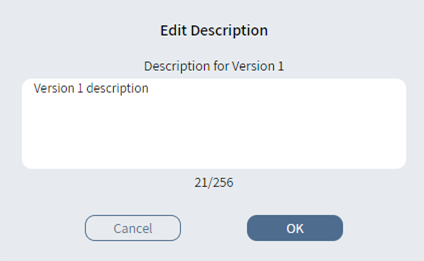
- Edit the version description.
- Click OK.
Republish a version
|
Note
|
- On the Version History page, hover your mouse over the version to republish and click
 Republish. A warning that this action will revert workspace [parent name] to snapshot version [number] and overwrite the workspace's current data, prior to republishing appears.
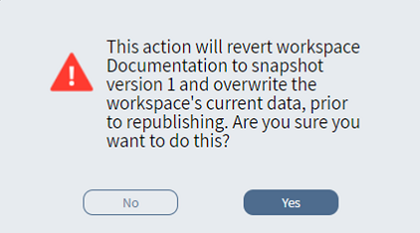
- Click Yes. The Publish Workspace [name] dialog appears.
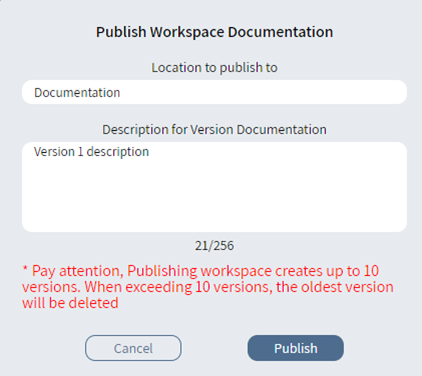
- Enter the Location to publish to.
- Enter a Description for the republished version of the workspace.
- Click Publish.
- The message Workspace successfully published appears. Click OK.