Open a workspace
|
Note
|
- On the navigation pane, click
 Workspaces. The Workspaces list appears, with the workspaces available in the database for the selected tenant. For navigation information, see List view.
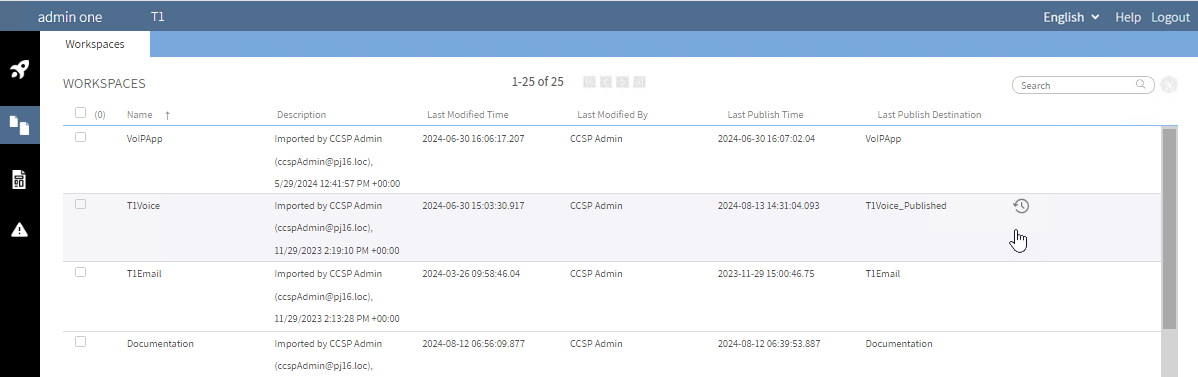
The columns are:
- Name — the name of the workspace.
- Description — the description of the workspace. This information can be changed in the workspace editor.
- Last modified time — this is currently the UTC time at which the workspace was last saved in the database. The time is updated when you save the whole workspace or an individual script.
- Last modified by — the name of the person who last saved the workspace.
- Last publish time — this is currently the UTC time at which the workspace was last published in the tenant’s IVR root path, configured in CCaaS Admin. The time is updated when you publish the whole workspace but not when you publish an individual script, table, or workspace file.
- Last publish destination — the name of the folder within the tenant's IVR root path in which the XML files were last saved.
- To resort the workspaces list, click a column heading. Each time you sort by a column heading, you update the list of workspaces.
- Do one of the following:
- Click the workspace to load. Next see Workspace editor overview.
- Hover your mouse over the workspace and click
 Version history. See Manage version history.