Workspace editor overview
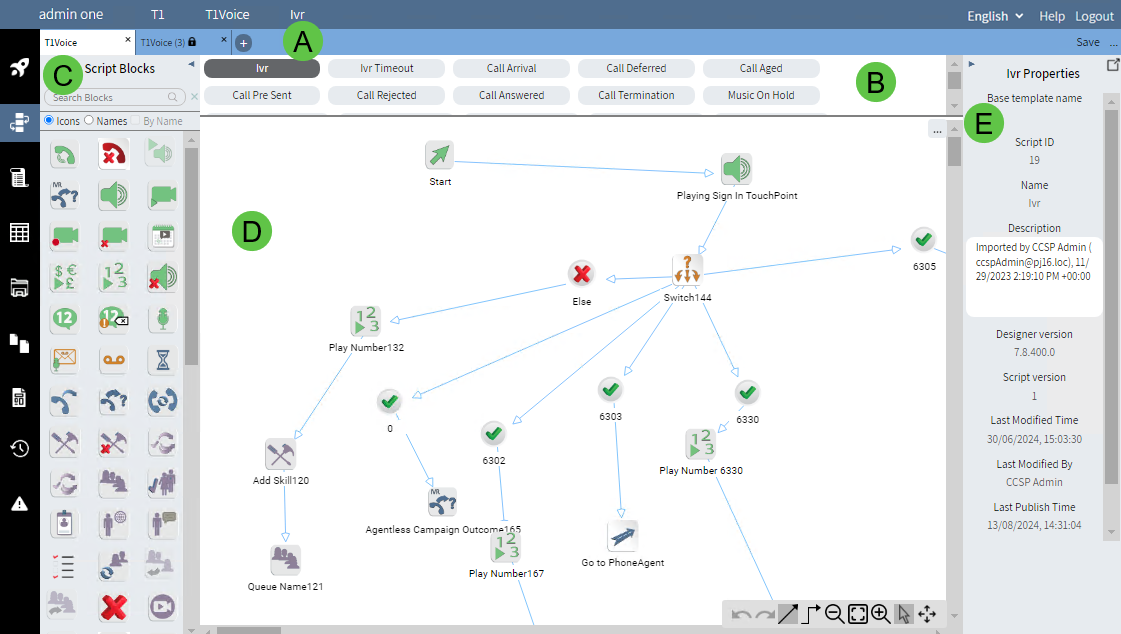
Workspace tab bar
The workspace tab bar contains a tab for each opened workspace and snapshot.
To open a new workspace click  . The New workspace tab displays the most recent workspace list and the buttons to create, open, or import a workspace that appear on the Get started page. For details, see Get started.
To open a snapshot of the open workspace, see Manage version history.
To close a workspace or snapshot tab, click the X on the tab. If the New workspace tab is the last tab left open, you cannot close it because the Workspace editor must have at least one tab.
Workspace tabs

To save the currently selected workspace, click Save.
Workspace menu
Use the workspace menu  as follows:
- Rename — to rename the currently selected workspace. See Rename a workspace.
- Save as — to save a copy of the currently selected workspace under a new name. The new workspace will be loaded in place of the current workspace. See Save a workspace with a new name.
- Save as Platform Template (landlord only) — to save the currently selected workspace as type Custom-platform. See Save a workspace as a Platform Template.
- Save as Tenant Template — to save the currently selected workspace as type Custom-tenant. See Save a workspace as a Tenant Template.
- Publish — to publish the currently selected workspace. See Publish a workspace.
- Delete — to delete the currently selected workspace. See Delete a workspace.
- Reload Last Published — to reload the currently selected workspace from the last published location. See Reload last published workspace.
Snapshot tabs

Each opened snapshot appears in its own tab, with the version number of the workspace in brackets and a lock icon. You cannot change the scripts, tables, or files in a snapshot. The script menu does not appear in the editor.
To revert the owning workspace of a snapshot to the snapshot's data, click Revert workspace to this snapshot. See Revert a workspace to a snapshot.
Script tabs panel
The Scripts tabs panel contains buttons for all the available scripts in the selected workspace, each of which corresponds to an event within the CCaaS system. See Flowchart of events and Predefined events.
You can add buttons for scripts or for items not necessarily related to events, but that can be called from scripts. See Add a new script.
To select a script to edit, click on the button with the script name. You can expand the Script tabs panel to see all the available scripts by dragging the bar down. You can also use the scroll bar to see the scripts.
The script buttons are color-coded as follows:
-
 — indicates a system script.
 -
 — indicates a system script that is currently selected.
 -
 — indicates a custom script added by a user.
 -
 — indicates a custom script that is currently selected.
When you edit a script, an asterisk appears beside its name and an asterisk appears beside the name of the workspace in the Workspace tab bar.
When you save the script, both asterisks disappear.
Script menu
|
Note The script menu only appears on workspace tabs. It is not available on snapshot tabs. |
Use the script menu  as follows:
- Add script — to add a new script. See Add a new script.
- Add system script — to add a system script. See Add a system script.
- Duplicate — to duplicate the currently selected script.
- Save — to save the currently selected script.
- Publish — to publish the currently selected script. See Publish a script.
- Validate — to validate the currently selected script. See Validate a script.
- Delete — to delete the currently selected script. The Delete option is disabled for system scripts.
Script blocks panel
The Script blocks panel contains all of the available script elements from which you construct scripts. For a complete list of the blocks, their attributes, and uses, see Blocks.
You can view the blocks by:
- Icons — the icons are arranged in the same order as the legacy CCaaS Designer blocks palette. When you point to a block, its name appears in a tooltip.
- Names — the icons with their names are arranged in the same order as the legacy CCaaS Designer blocks palette.
- By name — the icons with their names are sorted alphabetically. This option is not available when viewing only icons.
To see all the blocks, scroll the panel.
To search for a block, start typing in the search box located at the top of the panel. As soon as you begin typing, only blocks that contain those characters appear.
When you open the workspace to a particular script, blocks that are invalid for that script are unavailable in the Script blocks panel.
Custom blocks appear as icons with a question mark  . After importing custom blocks, you must reload the current workspace to refresh the blocks grid and show the custom blocks at the top of the list.
To hide the Script blocks panel, click the left arrow. To reopen the Script blocks panel, click the right arrow.
Flow editor
|
Note You cannot edit the flow on snapshot tabs. |
The Flow editor is the area in which you lay out the script's call flow. You can scroll the Flow editor vertically and horizontally. If you double-click on the Flow editor background, the mouse cursor goes into grab mode.
When you create a new script, it contains only a Start block. You cannot delete or rename a Start block.
To add a block to the Flow editor, drag it from the Script blocks panel to the Flow editor. As blocks are added to the workspace, they are assigned unique names by appending unique numbers to the display name of the block. For example, if you add a Play Audio block to a script that already has 315 blocks in the workspace, it will appear as PlayAudio316.
You can change the name of any block through the Properties panel or by editing the label in the Flow editor.
|
Note Block names must be unique within each script and must not exceed 256 characters in length. |
|
To select a block, click it. A blue border appears around it.
|

|
|
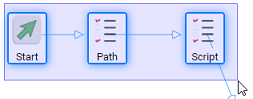
To select multiple blocks, click and drag a selection box around them. Alternatively, use the Ctrl or Shift keys to add individual blocks to your selection and to deselect blocks.
|
|
|
To connect two blocks, hover the mouse over the center of the icon so the cursor changes to a cross hair. Click and drag from the center of the first block to the second. A directed line with an arrowhead appears showing the connection and the direction of the call flow.
|

|
|
To move blocks, hover the mouse over the icon so the cursor changes to a move sign. Click the block and drag it to the new location. If you select multiple blocks, they move as a unit.
|

|
|
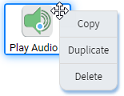
To copy blocks with their properties between scripts, use the right-click shortcut menu.
|
|
Block shortcut menu
When you right-click a block, the shortcut menu for the block appears. All blocks have the following actions:
- Copy
- Duplicate
- Delete
Some blocks have additional actions. For details about the individual blocks, see the Blocks section.
Flow editor shortcut menu
When you right-click the Flow editor background, the shortcut menu appears with the following actions:
- Undo
- Redo
- Paste
The actions are individually disabled if there is currently nothing to undo, redo, or paste.
Toolbar
Use the toolbar icons as follows.
|
Icon |
Description |
|---|---|

|
Undo the last block action. For limitations, see below. |

|
Redo the last block action. For limitations, see below. |

|
Use straight connectors |

|
Use elbow connectors |

|
Zoom out script display |
|
|
Zoom script display to fit |
|
|
Zoom in script display |
|
|
Selection mode |
|
|
Editor drag mode |


Undo or Redo will reverse or perform the following actions:
- Block creation (including paste of copied blocks)
- Block deletion
- Block move
- Block rename
- Block property change
- Connection creation
- Connection deletion
Properties panel
The Properties panel shows you information about the currently selected workspace, script, or block and lets you enter and modify information for it.
|
Note You can use the Tab key to move between the fields on the Properties panel. Use Tab to move forward and Shift + Tab to move backward. |
To hide the Properties panel, click the right arrow. To view the Properties panel, click the left arrow.
To undock the properties, click  . To dock the properties to the right side again, click
  or
or  .
.
|
Note The Undo action will reverse changes to a block property but it will not reverse changes to a workspace or script property. |
Workspace properties
To see the properties of a workspace, click its tab in the Workspace tab bar. The properties are:
- Workspace ID — new unsaved workspaces have a negative ID.
- Name — the name of the workspace.
- Description — the description of the workspace. This information can be changed in the workspace editor.
- Version — the version number of the workspace. This number is incremented each time you save the workspace or an individual script.
- Designer version — the version of Designer that the workspace was saved in.
- Last modified time — this is currently the UTC time at which the workspace was last saved in the database. The time is updated when you save the whole workspace or an individual script.
- Last modified by — the name of the person who last saved the workspace.
- Last publish time — this is currently the UTC time at which the workspace was last published in the tenant’s IVR root path, configured in Admin. The time is updated when you publish the whole workspace but not when you publish an individual script, table, or workspace file.
- Last publish destination — the name of the folder within the tenant's IVR root path in which the XML files were last saved.
Snapshot properties
To see the properties of a snapshot, click its tab in the Workspace tab bar. The properties are:
- Workspace ID
- Workspace snapshot ID
- Workspace snapshot version — the version number of this snapshot.
- Workspace snapshot description — the description of this snapshot. This information can be edited on the Version History page. See Edit a snapshot's description.
- Name — the name of the workspace.
- Description — the description of the workspace.
- Version — the version number of the workspace.
- Designer version — the version of Designer that the workspace was saved in.
- Last modified time — this is currently the UTC time at which the workspace was saved for this snapshot.
- Last modified by — the name of the person who saved the workspace at this point.
- Last publish time — this is currently the UTC time at which this version of the workspace was published in the tenant’s IVR root path, configured in Admin.
- Last publish destination — the name of the folder within the tenant's IVR root path in which the XML files for this version of the workspace were last saved.
Script properties
To see the properties of a script, click its tab in the Script tabs panel or click on the background of the Flow editor. The properties are:
- Script ID — new unsaved scripts have a negative ID.
- Name
- Description — this information can be edited.
- Designer version — the version of Designer that the script was saved in.
- Script version — the version of the script. This number is incremented each time you save the workspace or an individual script.
- Last modified time — the time is updated when you save the whole workspace or the individual script.
- Last modified by
- Last publish time — the time is updated when you publish the whole workspace or an individual script.
- Published filename — the name of the xml file.
Block properties
To see the properties of a block, click the block in the Flow editor. Note that if you select multiple blocks in the Flow editor, the Properties panel is blank.
In the Comments property, you can enter a description of how the block is used in your script.
For details about the properties of the individual blocks, see the Blocks section.