Manage workspaces
Save a workspace as a tenant template
Reload the last published workspace
|
Note If two users, A and B are editing the same workspace, whoever saves the workspace first prevents the other user from saving their changes under the same name. For example: user A edits and saves the IVR script and then user B attempts to save their copy of the IVR script with their changes. In this case, user B receives an error that the workspace has been modified by someone else. User B then has to use the Save as option to save a copy of the workspace. They can then load the original version again and reconcile their changes with the person who made the updates. |
Save a copy of the workspace
- In the Workspace editor, in the workspace tab bar, select the workspace to duplicate.
- Click
 and then click Save As. The Save As dialog appears.
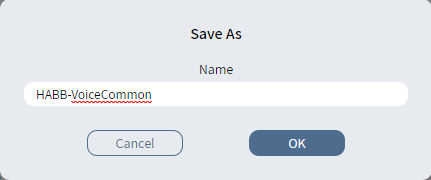
- Enter the duplicate workspace name.
- Click OK.
- The message Workspace successfully saved appears. Click OK.
The duplicated workspace is loaded in place of the current workspace.
Save a workspace as a tenant template
- In the Workspace editor, in the workspace tab bar, select the workspace to save as a tenant template.
- Click and then click Save As Tenant Template. The Save As Tenant Template dialog appears.
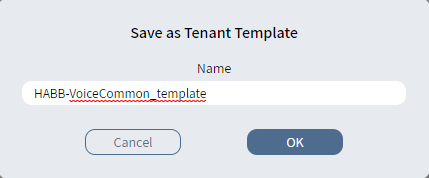
- Enter the new template name.
- Click OK.
- The message Workspace template successfully saved appears. Click OK.
The new template of type Custom-tenant appears in the Workspace templates list.
Revert a workspace
You can revert a workspace to a previous version (snapshot).
- In the Workspace editor, in the workspace tab bar, select the snapshot to revert to. See Open a snapshot.
- Click Revert workspace to this snapshot. A warning that this action will overwrite the workspace's current data appears.
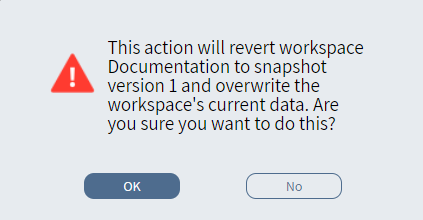
- Click OK.
- The message The workspace has been successfully reverted to snapshot version [number] appears. Click OK.
Reload the last published workspace
|
Note
|
|
Caution Workspace files are not automatically imported when you reload the last published version of the current workspace from the network. You must manually import them. |
- In the Workspace editor, in the workspace tab bar, select the workspace to reload.
- Click and then click Reload Last Published. The Reload Last Published dialog appears.
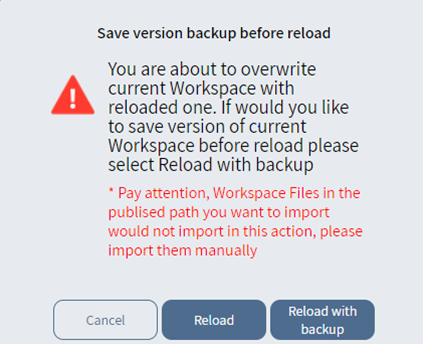
- Do one of the following:
- To reload the current workspace from the network, click Reload.
- To save a backup version of the current data in the workspace before reloading the workspace from the network, click Reload with backup.
- The message Workspace successfully reloaded appears. Click OK.
- If you clicked Reload with backup, you can go to the Version History page to view the new backup version of the workspace.
Delete a workspace
|
Note When you delete a workspace, only the database is updated. Any published files remain. |
- In the Workspace editor, in the workspace tab bar, select the workspace to delete.
- Click and then click Delete.
- Confirm the deletion.
You can also delete a workspace from the Workspaces list.
- On the navigation pane, click
 Workspaces.
 - In the Workspaces list, select the check box in front of the workspace to delete.
- Click
 .
. - Confirm the deletion.