Manage workspace files
|
Note
|
- Open the workspace that contains the files. See Open a workspace.
- On the navigation pane, click
 Workspace Files. The Workspace Files list appears. For navigation information, see List view.

The columns are:
- Name
- Source file
- Size
- Last modified time — this is currently the UTC time at which the file was saved in the database.
- Last modified by
- Last publish time — this is currently the UTC time at which the file was published in the tenant’s IVR root path, configured in CCaaS Admin.
Upload a new file
- On the Workspace Files page, click
 Add. The Upload Workspace File dialog appears.
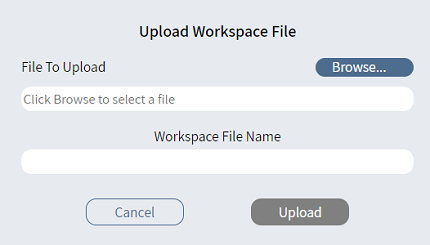
- Click Browse and select the file to upload.
- Enter the workspace file name.
- Click Upload.
- The message Workspace file successfully uploaded appears. Click OK.
Upload an updated file
- In the Workspace Files list, hover your mouse over the file to upload and click
 Upload.
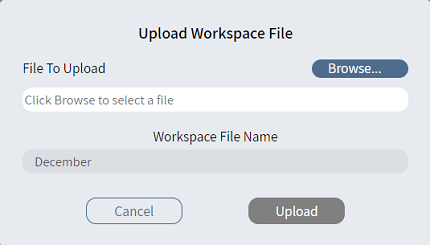
- Click Browse and select the text file to upload.
- You cannot change the workspace file name.
- Click Upload.
- The message Workspace file successfully uploaded appears. Click OK.
Download a file
- In the Workspace Files list, hover your mouse over the file to download and click
 Download. The Download Workspace File [name] dialog appears.
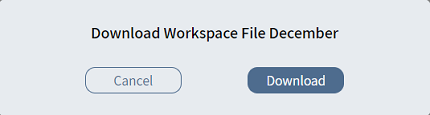
- Click Download. The workspace file appears in your Downloads folder.
Publish a file
|
Note
|
- In the Workspace Files list, hover your mouse over the file to publish and click
 Publish. The Publish Workspace Files dialog appears.

- Enter the Location to publish to. You can use the default workspace location or change the name to publish to a different workspace folder.
- Click Publish.
- The message Workspace file successfully published appears. Click OK.
Rename a file
- In the Workspace Files list, hover your mouse over the file to rename and click
 Rename. The Rename [name] ? dialog appears.
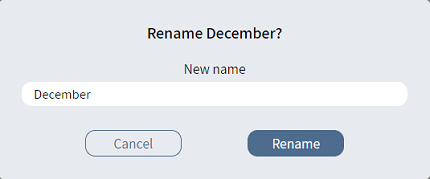
- Enter the new name.
- Click Rename.
Delete a file
- In the Workspace Files list, select the check box in front of the workspace file to delete.
- Click
 Delete.
 - Confirm the deletion.