Get started page
|
Note
|
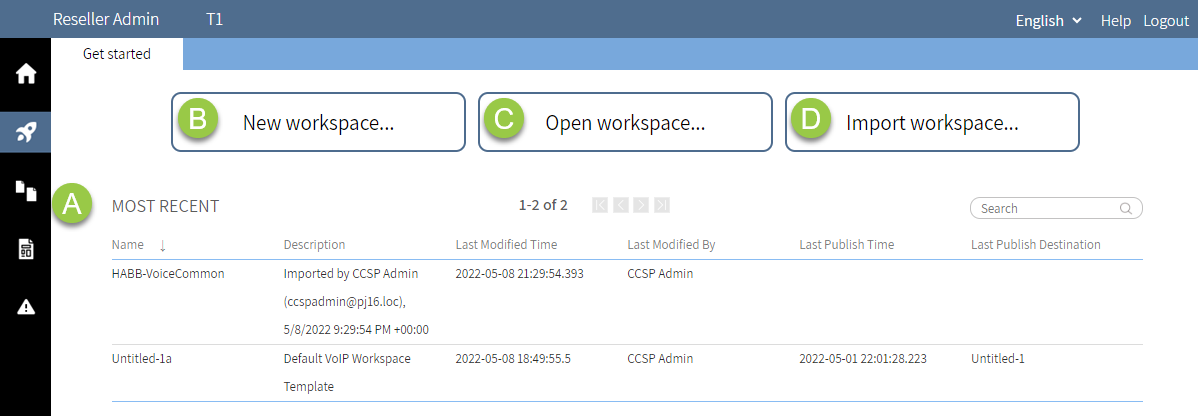
After selecting the tenant to work with, reseller administrators see the Get started page with that tenant's workspace information.
After logging in, tenant administrators see the Get started page with their workspace information.
Reseller view
Tenant view
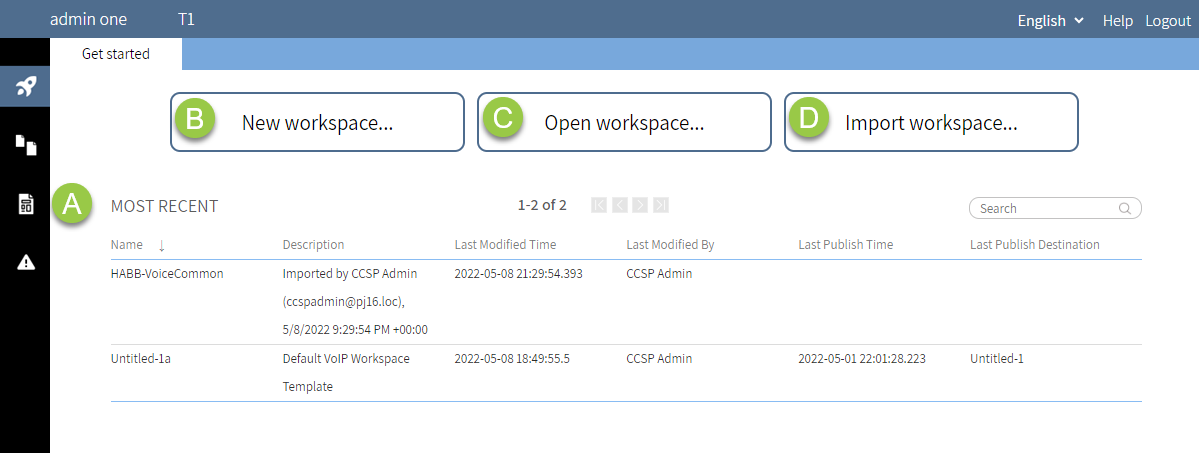
To open a recently edited workspace, in the Most recent list (A), click the workspace. For navigation information, see List view. The Workspace editor appears. Next, see Workspace editor overview.
To create a new workspace, click New workspace (B). The Workspace templates page containing a list of the available templates to choose from appears. Next, see Manage workspace templates.
To open an existing workspace, click Open workspace (C). The Workspaces page containing a list of the available workspaces to choose from appears. Next, see Open a workspace.
To import an existing workspace as part of the process of migrating a tenant from the legacy to the new Designer, click Import workspace (D). The Import Workspace dialog appears. Next, see Import a workspace.