Switch

This block evaluates a case statement and branches according. For important information about variables in CCaaS Designer, see How to use variables.
|
Properties |
Values |
Description |
|---|---|---|
|
Expression |
The left side of any valid expression equals. (VBScript) |
Causes branching in the script. The name of the case branch you add to the block is the value to check the expression is equal to. For example, $Line.DNIS$ branches to 5551234 when the DNIS value for this call is 5551234. When the switch expression is $line.DNIS$, the Add case dialog presents a drop down list of the available DNIS values for the tenant. You are not restricted to using the DNIS values in the drop down list. For example, you can use an expression as the selected value. |
Configure the Switch block
- Right-click the block and click Add case. The Add Case dialog appears.
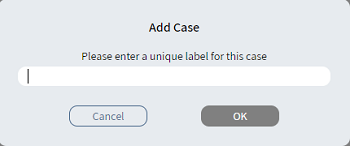
If the switch expression is $line.DNIS$, the Add Case dialog appears with a drop down list of the available DNIS values for the tenant.
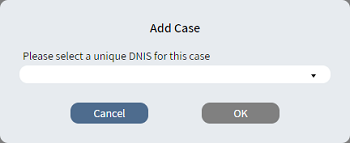
- Type a unique description or select the DNIS value to use.
- Click OK. The Case
branch
 appears.
 - Connect the Case branch to the appropriate block in the script.
- Repeat steps 1-4 to add all the branches you need.
- Connect the Else
branch
 to the appropriate
block in the script.
to the appropriate
block in the script.
|
Note The following blocks are used for call routing: They all require Case statements to be evaluated to direct the call. |