Manage scripts
|
Note
|
- Open the workspace that contains the scripts. See Open a workspace.
- On the navigation pane, click
 Scripts. The Scripts for [workspace] list appears. For navigation information, see List view.
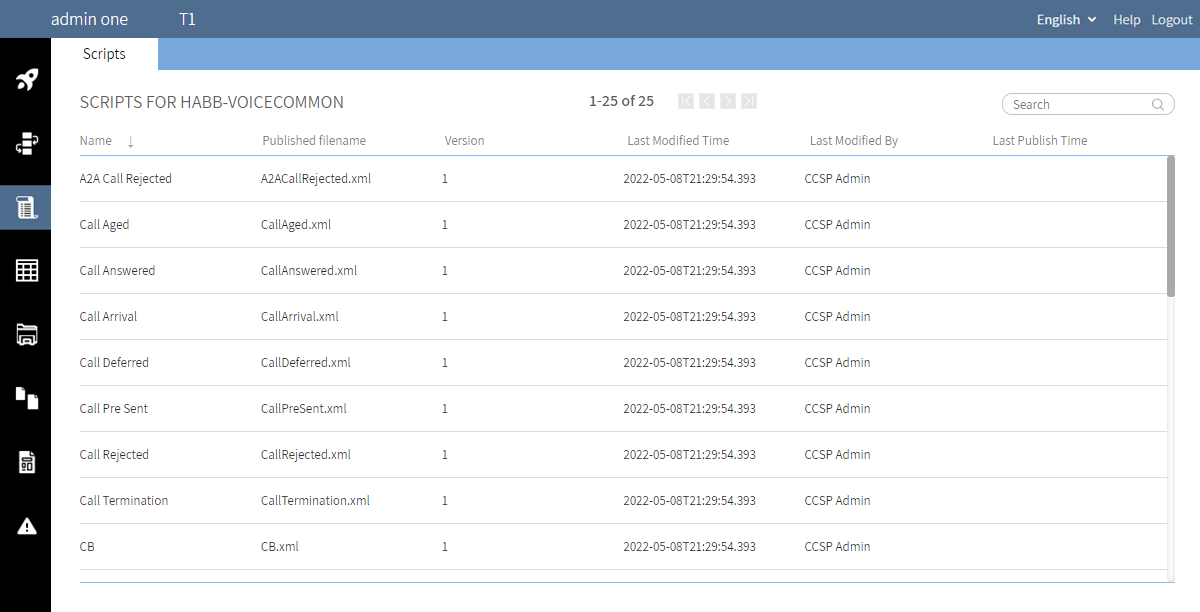
The columns are:
- Name
- Published filename
- Version — the version of the script.
- Last modified time — this is currently the UTC time at which the script was saved in the database.
- Last modified by
- Last publish time — this is currently the UTC time at which the script was published in the tenant’s IVR root path, configured in CCaaS Admin.
Add a new script
- In the Workspace editor, click
 and then click Add Script. The Add New Script dialog appears.
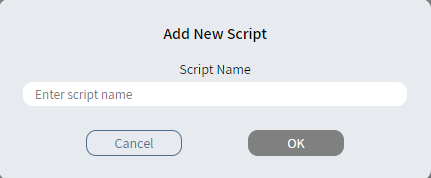
- Enter the script name. You cannot use the name of a system script.
- Click OK.
The script is added to the workspace and selected.
Add a system script
- In the Workspace editor, click and then click Add System Script. The Add System Script dialog appears.
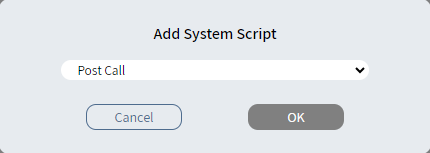
- Select the script.
- Click OK.
The script is added to the workspace and selected.
Duplicate a script
- In the Workspace editor, in the Script tabs, select the script to duplicate.
- Click and then click Duplicate. The Duplicate dialog appears.

- Enter the duplicate script name.
- Click OK
The duplicate script is added to the workspace and selected.
Rename a custom script
You can rename only custom scripts.
- In the Workspace editor, in the Scripts list, select the script to rename.
- Click and then click Rename. The Rename [name]? dialog appears.
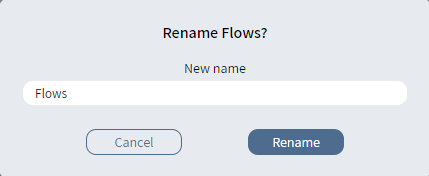
- Enter the new script name.
- Click Rename.
The renamed script is added to the workspace and selected.
Save a script
When you edit a script, an asterisk appears beside its name and an asterisk appears beside the name of the workspace in the Workspace tab bar. When you save the script, both asterisks disappear.
- In the Workspace editor, in the Script tabs panel, select the script to save.
- Click and then click Save.
- The message Script successfully saved appears. Click OK.
Publish a script
|
Note
|
- In the Workspace editor, in the Script tabs panel, select the script to publish.
- Click and then click Publish. The Publish [name] script dialog appears.
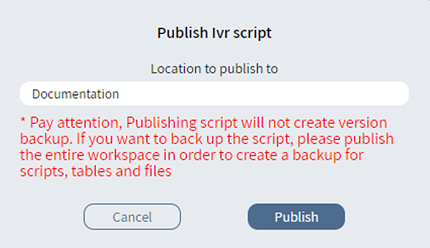
- Enter the Location to publish to. You can use the default workspace location or change the name to publish to a different workspace folder.
- Click Publish.
- The message Script successfully published appears. Click OK.
Validate a script
CCaaS Designer provides script validation to check that each individual call event script contains only CCaaS Designer blocks that are valid for that particular call event. Script validation is performed automatically when you click Save.
- In the Workspace editor, in the Script tabs panel, select the script to validate.
- Click and then click Validate.
- If the script is valid, the message Script is valid appears.
- If the script is not valid, the message Script is not valid appears. Click Details to view more information on the Errors page.
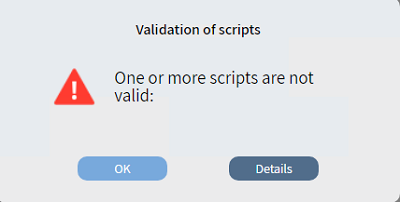
- Click OK.
Delete a custom script
You can delete only custom scripts.
- In the Workspace editor, in the Script tabs panel, select the script to delete.
- Click and then click Delete.
- Confirm the deletion.